Advanced Settings
The advanced settings are options that generally won't need to be adjusted between videos. There are, however, settings that may be useful in specific circumstances (such as a computer with slow processing speed or with an unusual camera setup)
Each of the following settings can be adjusted individually
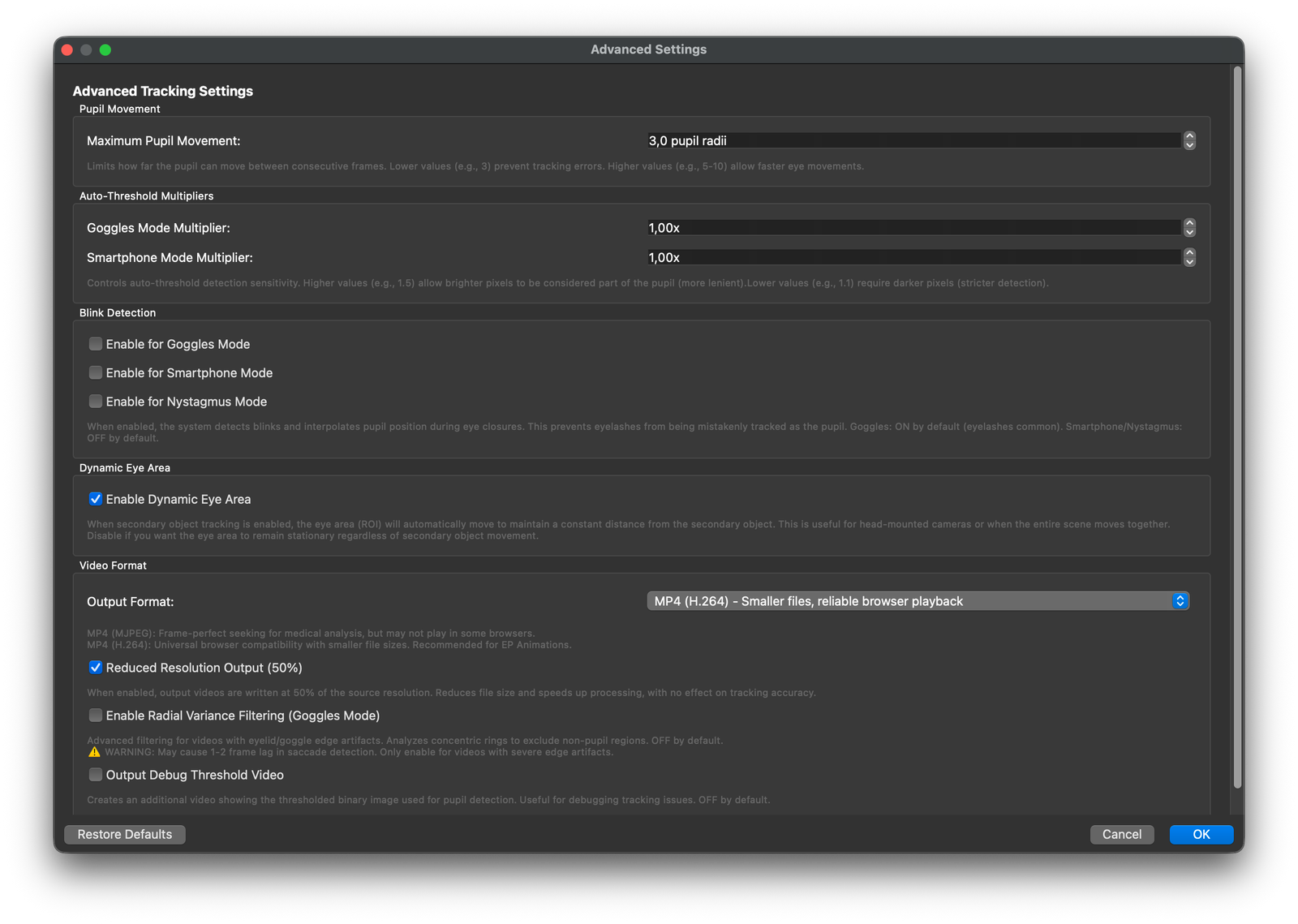
Maximum pupil movement
This is the maximum distance that a pupil can move from one frame to the next. This setting helps to prevent extraneous dark spots (eye lashes etc) from being detected as a possible pupil, particularly during blinks. A lower setting here is generally advantageous, but may cause larger pursuits to be missed
Recording method also has a significant impact. In a lighter environment the pupil will naturally have a smaller radius. The limit here is based on pupil radius, so increasing the maximum movement may be necessary with smaller pupils
Auto-threshold multipliers
Setting the pupil threshold has become significantly less important since Eye Precision version 2. It is now almost always managed by the software automatically
Users with unusual recording methods may still encounter situations where manual adjustment is beneficial. This can be performed manually using the slider in Eye Precision, but if manual adjustment is consistently necessary, the auto-threshold multipliers can be adjusted to fine-tune the detection sensitivity
Blink detection
Eye Precision has a system built in to detect and mark blinks during the video. This can be useful when a test subject blinks excessively, or to clarify results graphs with unexpected peaks
In the majority of cases blink detection is not necessary, but some users may prefer to have it available
If a video is particularly difficult to process, it is worth considering turning this setting on/off and reprocessing
Dynamic Eye Area
This setting is relevant for videos recorded with a static camera (ie not goggles) with Head Movement Correction using a sticker or similar landmark on the face
Without the Dynamic Eye Area setting, the software will use a fixed area around the detected pupil for tracking
When Dynamic Eye Area is enabled, the software will move the tracking area based on the subject's head movement. This allows for a tighter "Eye Area" to be marked, excluding more unnecessary background elements and improving tracking accuracy
This setting will only work when using Head Movement Correction
Output Format
A choice between two types of video results outputs
There is little difference between the two available video output formats in most circumstances. If you preferred media player works better with one version than the other, you can change it here
Reduced resolution
Videos are output at the same resolution as the original recording by default
To speed processing times or save on memory, the resolution can be reduced with this checkbox
Enable Radial Variance Filtering
This setting enables the use of radial variance filtering to improve the accuracy of pupil detection in challenging lighting conditions
While this sometimes improves the accuracy of results, it can be significantly slower to process, and may react slower to rapid eye movements
It is recommended to only use this option when a pupil proves difficult to track with normal processing
Output Debug Threshold Video
This setting is to analyse videos that fail to track
This will generally only be necessary at the request of the app developers