Step 2 – Track Eyes
Eye Precision works in three steps: 1 Run Test (show the animations and record the eyes), 2 Track Eyes (measure the eye position in the video) and 3 Compare to Target (compare the eye position with where the target was). You can start at any step: Track Eyes works with any eye video, however it was recorded.
New to Eye Precision? Start with the First Use Guide. For installation instructions go to this page and choose your operating system.
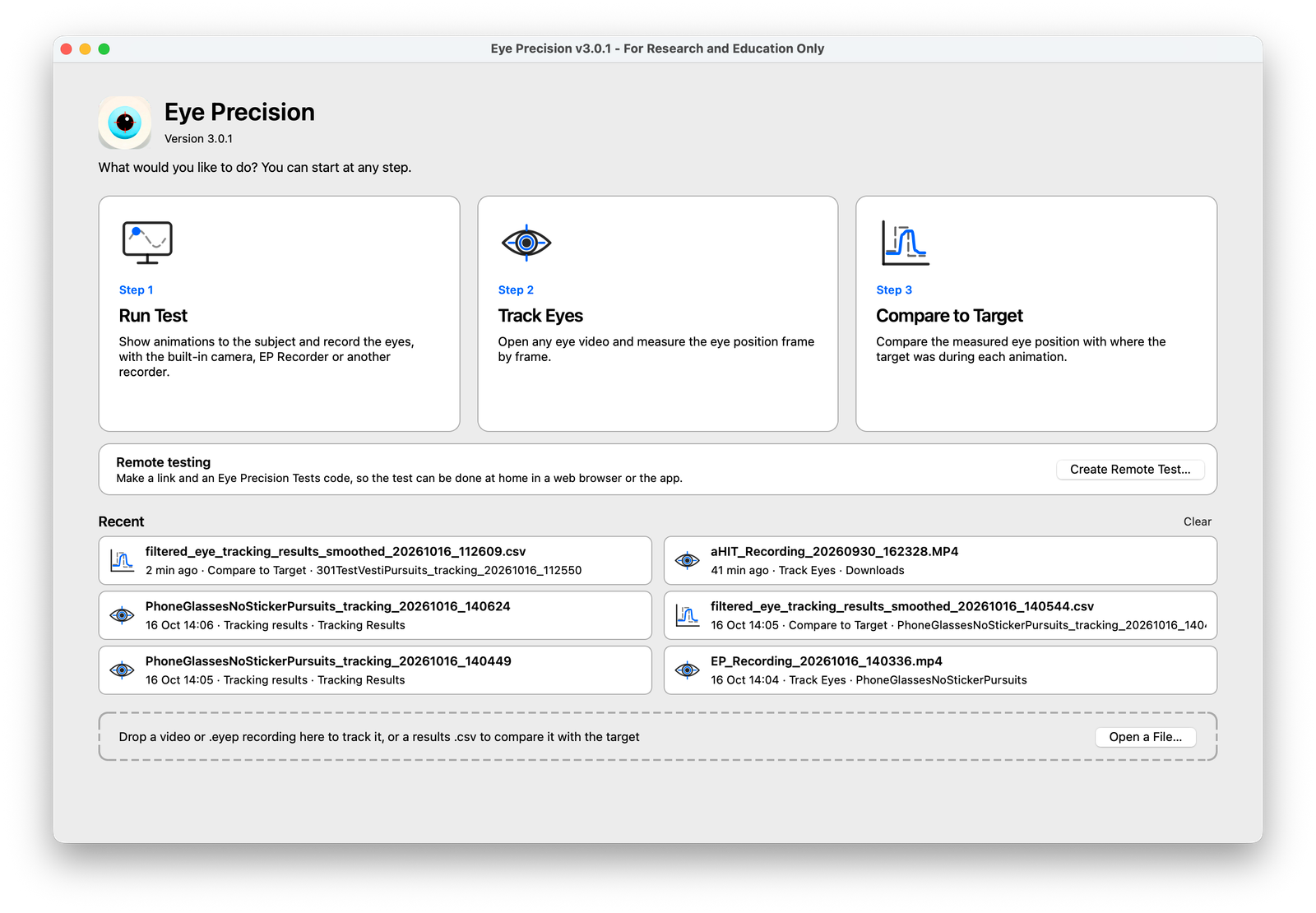
Open Track Eyes
On the start screen, click Track Eyes. Once you're inside, the three steps are tabs along the top of the window; the Home button returns to the start screen
Check for Updates
Eye Precision receives regular updates. Choose Help → Check for Updates in the menu bar (at the top of the screen on Mac, at the top of the program window on Windows). See Updating the App
Load your video
Track Eyes analyses existing videos. These may have been recorded in Run Test, on a smartphone with EP Recorder, or with any other recorder such as OBS, and then transferred to your computer
Videos recorded in Run Test, and recordings sent from EP Recorder with Send to paired computer, open in Track Eyes by themselves
Otherwise, click Load Video at the top of the window, drag-and-drop the video (or .eyep recording) onto the window, or pick it from the Recent list on the start screen
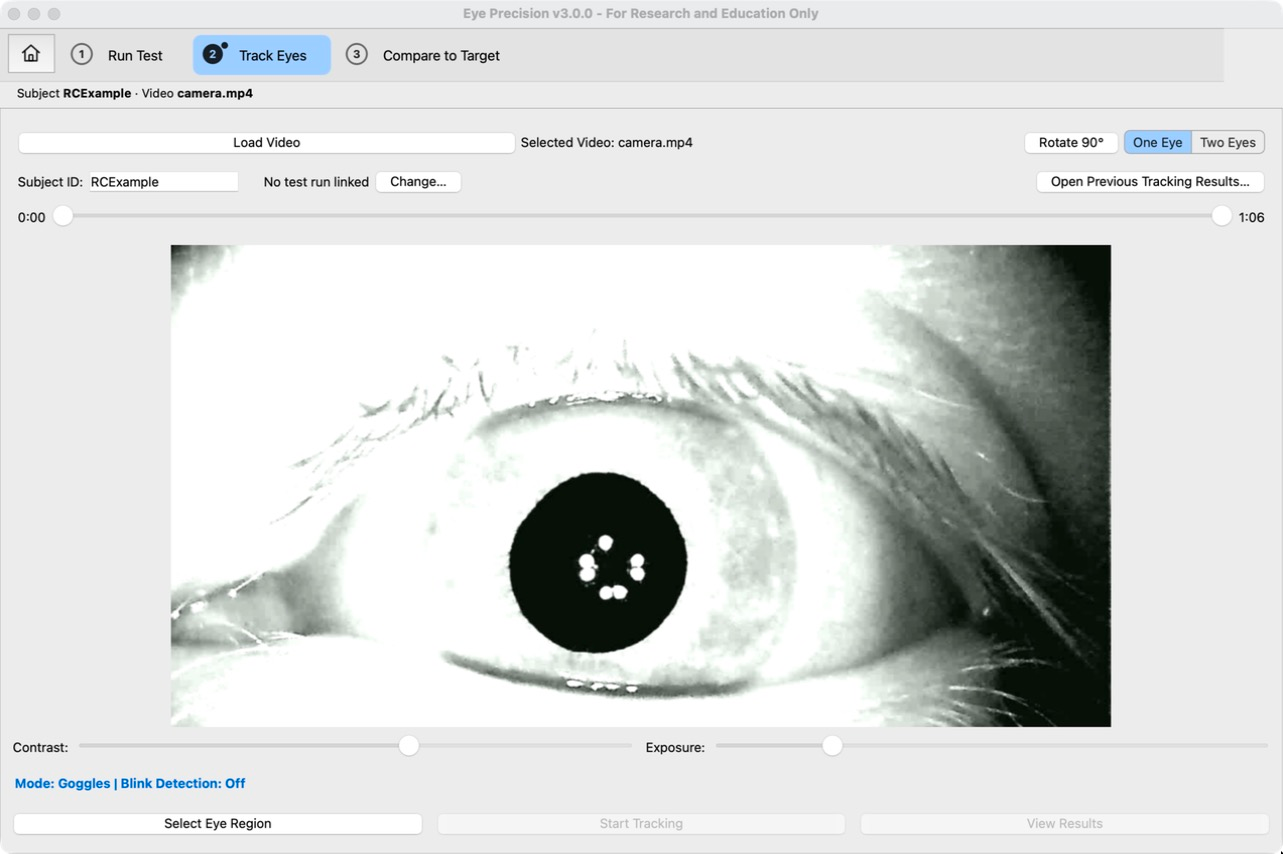
The first frame of the video appears in the Track Eyes screen
Check the mode
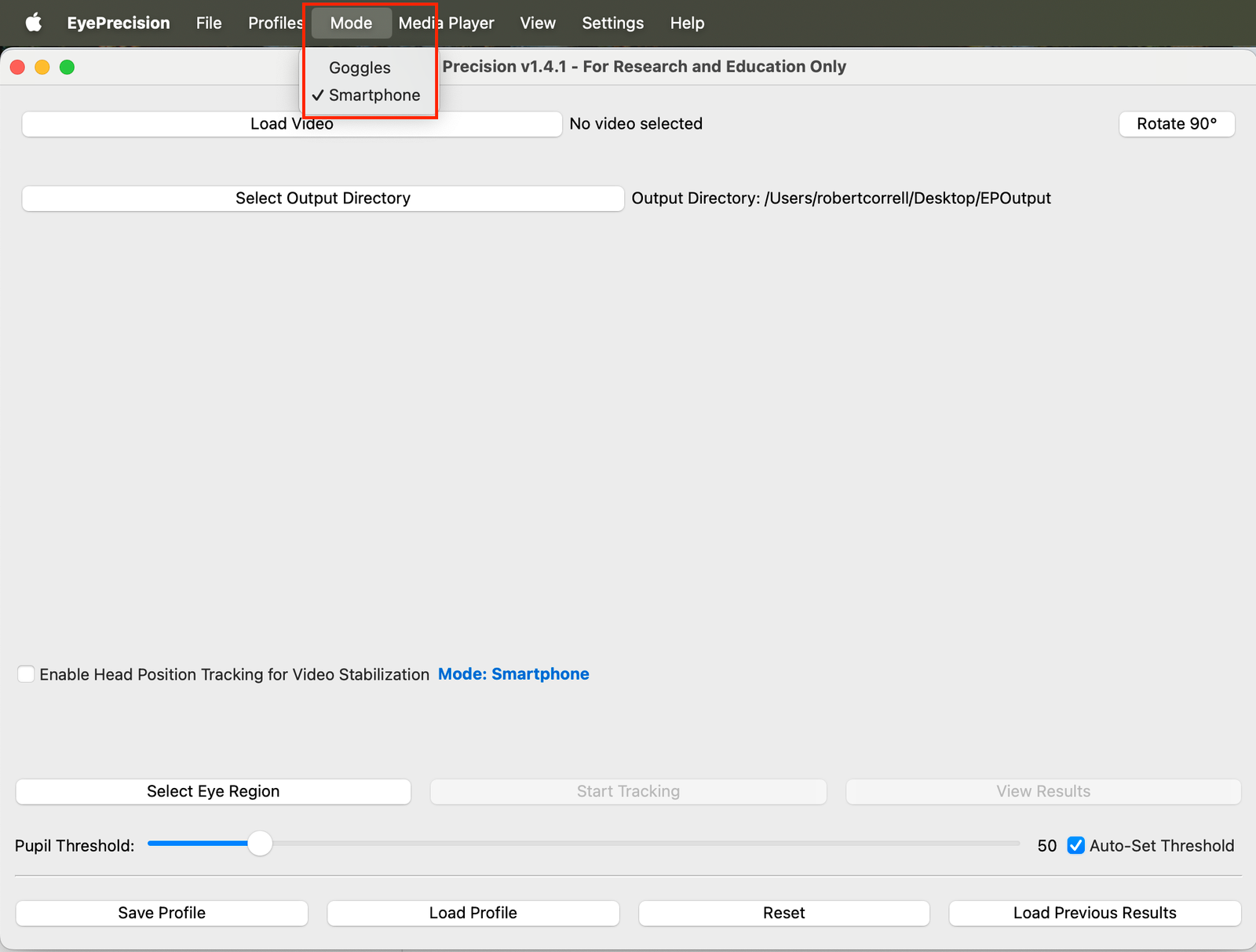
Eye Precision uses different modes for different kinds of video: Goggles, Smartphone (Iris), Smartphone (Classic) and Nystagmus
For new recordings the mode is chosen for you: Goggles for the built-in camera, Smartphone (Iris) for EP Recorder (or Smartphone (Classic), if that's the smartphone mode you used last). Check it under Mode in the menu bar, and change it if needed
One eye or two eyes
If the video shows both eyes and you want to track both, choose Two Eyes with the One Eye / Two Eyes switch next to Load Video (Eye Precision remembers your choice). You then mark the right and left eye regions separately, and each eye gets its own pupil and pupil threshold
Subject ID and test run
You can optionally set a name or number for the test subject under Subject ID. It is added to the results folder name, making the results easier to find later. If it was entered in Run Test, it is filled in for you
Next to it, Eye Precision shows which test run the video belongs to, matched automatically by the recording time. If it's wrong or missing, click Change… and pick the right one. This is what lets Compare to Target fill in the animations for you later

Set Start/End times
In some cases you may want to remove the start and/or end of your video, or analyse only part of the video
Starting from a frame in which the pupil is clearer can also give better results
Adjust the slider at the top to choose the start/end times
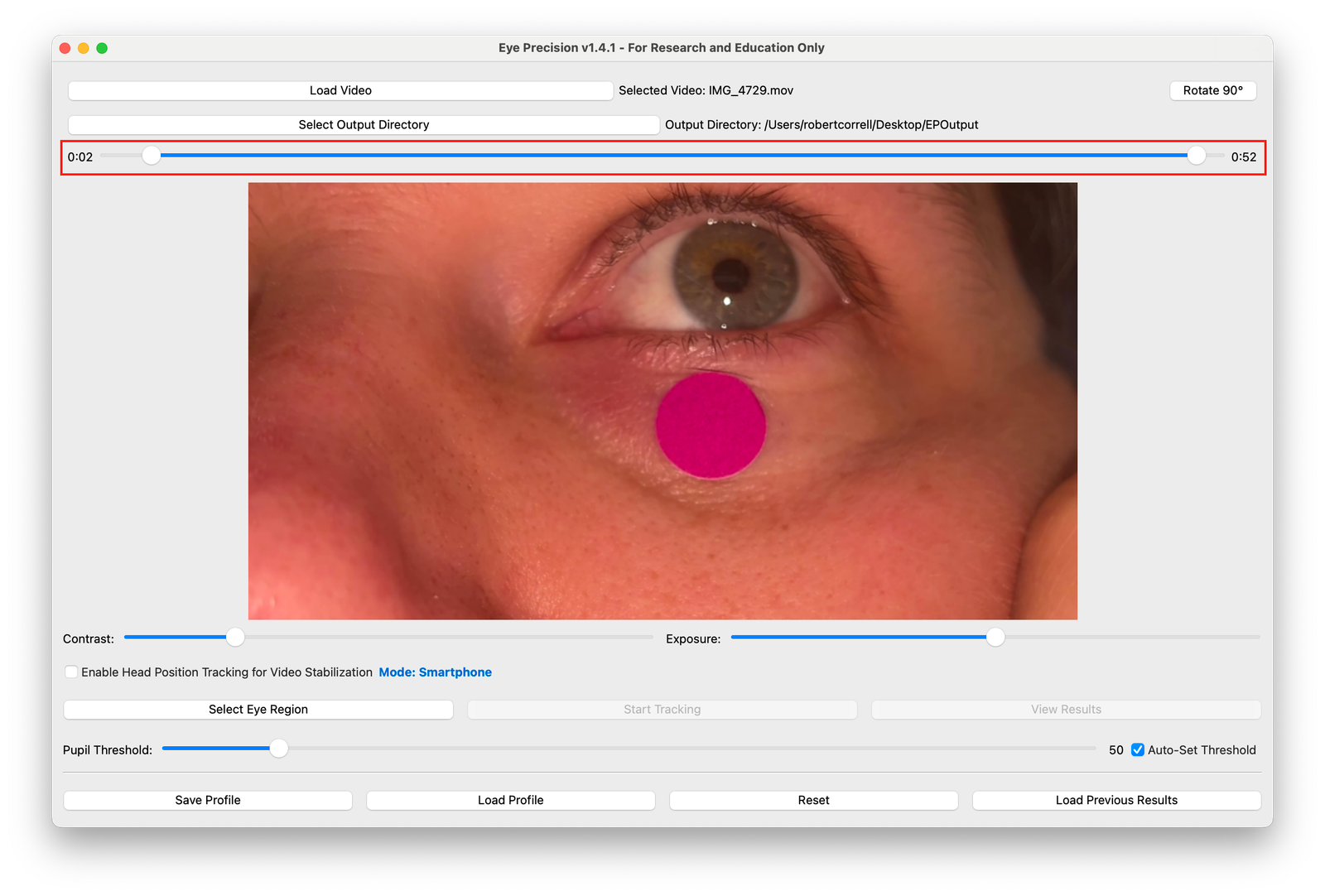
When the video includes a calibration from Run Test, start the video around the leftward pursuit that starts the calibration for best results
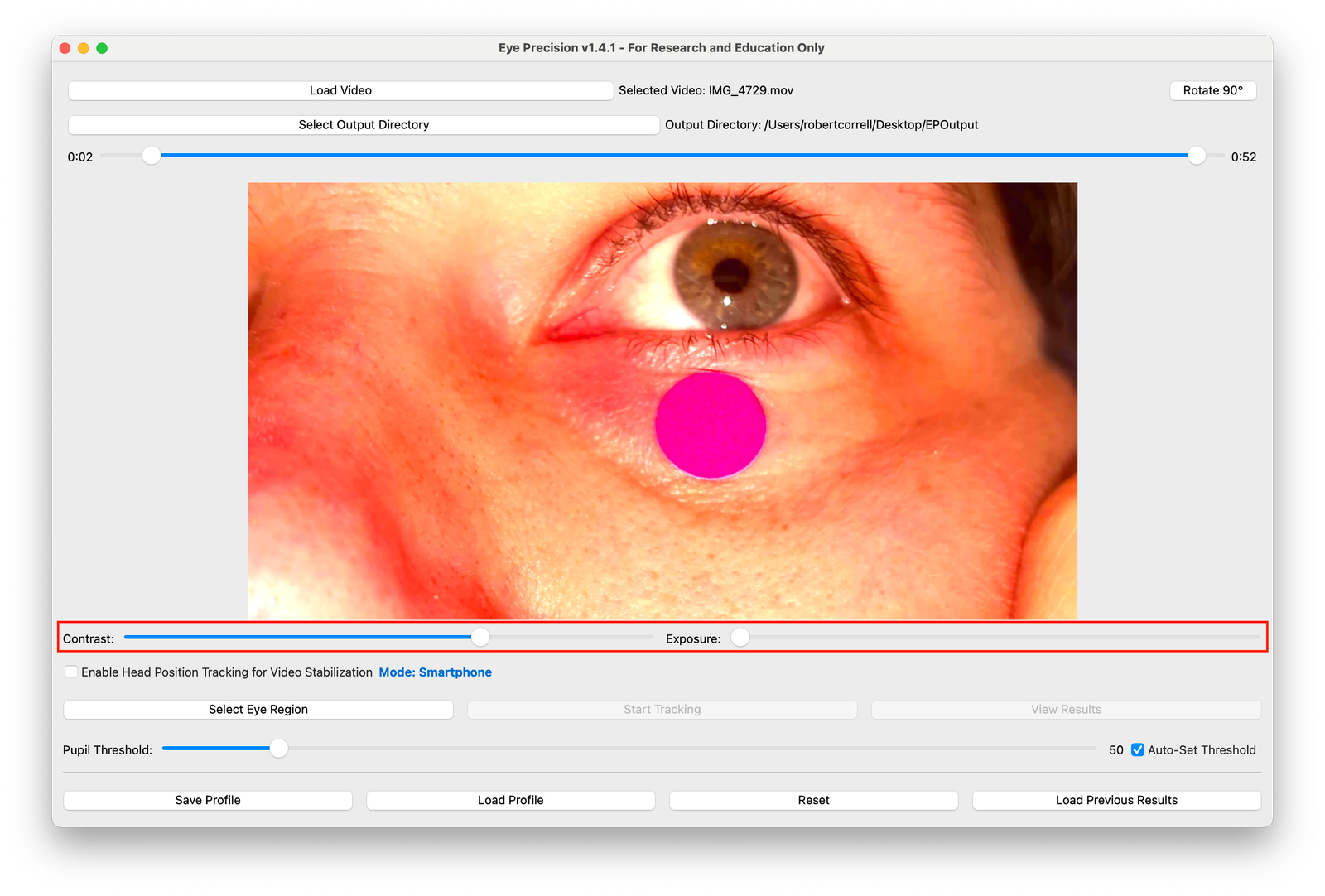
Contrast/Exposure/Hue
The pupil needs to stand out clearly from the iris around it
Smartphone modes: leave Auto-set Contrast/Exposure/Hue ticked and Eye Precision chooses the settings for you
Goggles: maximum contrast and minimum exposure is almost always best
If you untick Auto-set and adjust the sliders yourself: a very dark pupil usually works best. For darker eye colours, a high contrast and mid-level exposure (lightening the iris) can help, and adjusting the hue can increase the difference between pupil and iris. Try a few seconds of video first before analysing the whole video
Selecting the Eye Region
After setting the lighting levels, mark where the eye will be tracked within the video by clicking Select Eye Region
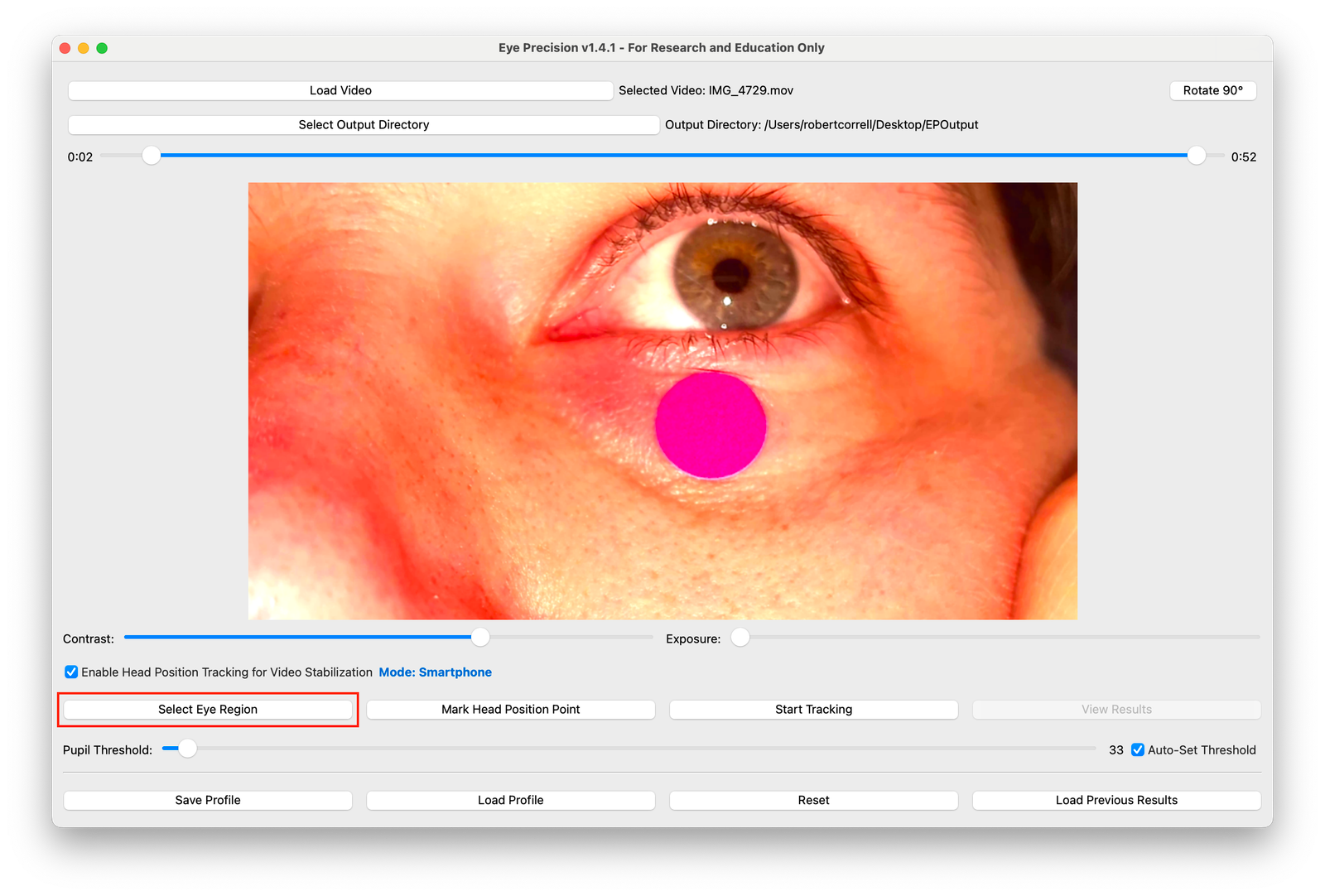
Any part of the video frame outside the marked area isn't searched for a pupil, so if the centre of the pupil leaves the marked Eye Region, it will not be tracked
Tracking across the entire video frame is possible, but it increases the chance of artefacts and can greatly increase processing time
Ideally the Eye Region should be as small as possible, while still covering the whole area in which the pupil may be found
With a camera that isn't head-mounted, the eye can move within the frame, so you may need to mark a larger area
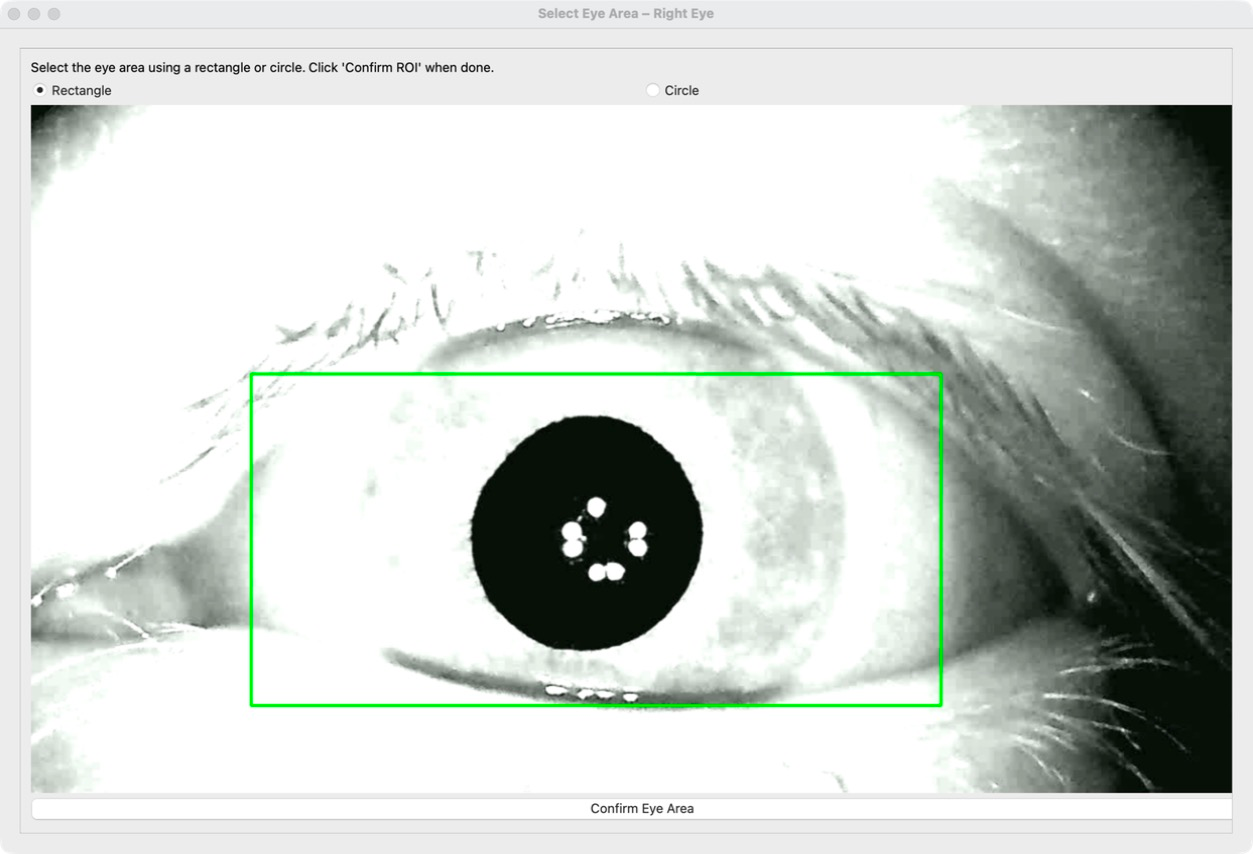
Once you're happy with the marked region, click Confirm Eye Area (depending on the video size you may need to scroll down)
The marked Eye Region can be shown in the results video (View → Show ROI in Output Video). If you see that the pupil leaves this area, run the analysis again with a larger region
Marking the pupil
Eye Precision needs an initial pupil to follow. Its expected position, size and darkness are based on this initial pupil
The program first tries to find the pupil within the marked Eye Region
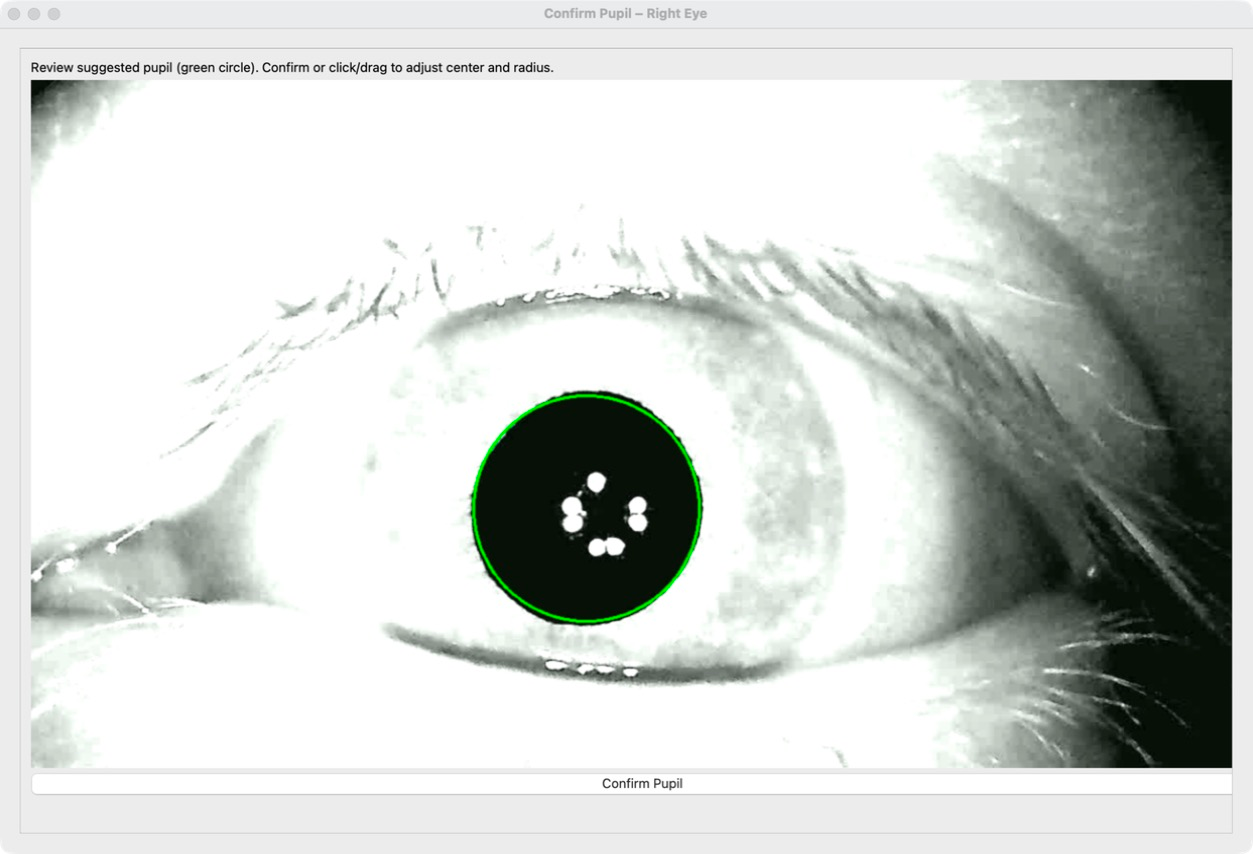
If the indicated area doesn't match the pupil, mark it yourself: click on the centre of the pupil and drag the mouse to the edge of the pupil. Ideally this should match the outline of the pupil as closely as possible
Once you're happy with the marked pupil, click Confirm Pupil at the bottom of the window (depending on the video size you may need to scroll down)
Marking the Iris (Smartphone (Iris) mode only)
In Smartphone (Iris) mode, Eye Precision detects and marks the iris after the pupil has been confirmed
If the marking is correct, click Confirm Iris. If not, click on the centre of the iris and drag outwards to redraw it, then click Confirm Iris
Head Movement Correction
In the smartphone modes, Head Movement Correction compensates for head movement. It needs a fixed point close to the eye that stays visible throughout the video; a coloured sticker works well
Tick Enable Head Position Tracking for Video Stabilization, then click Mark Head Position Point
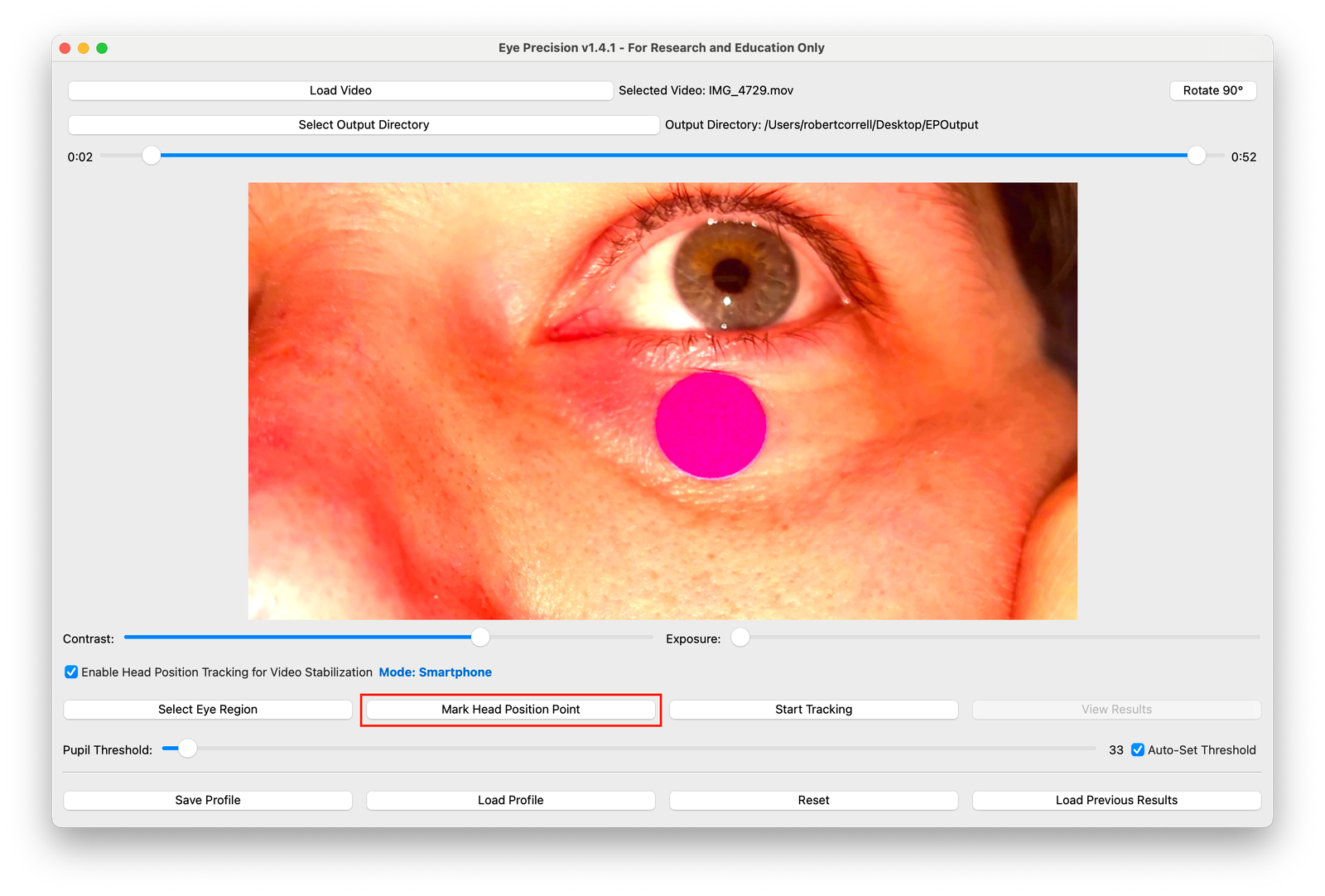
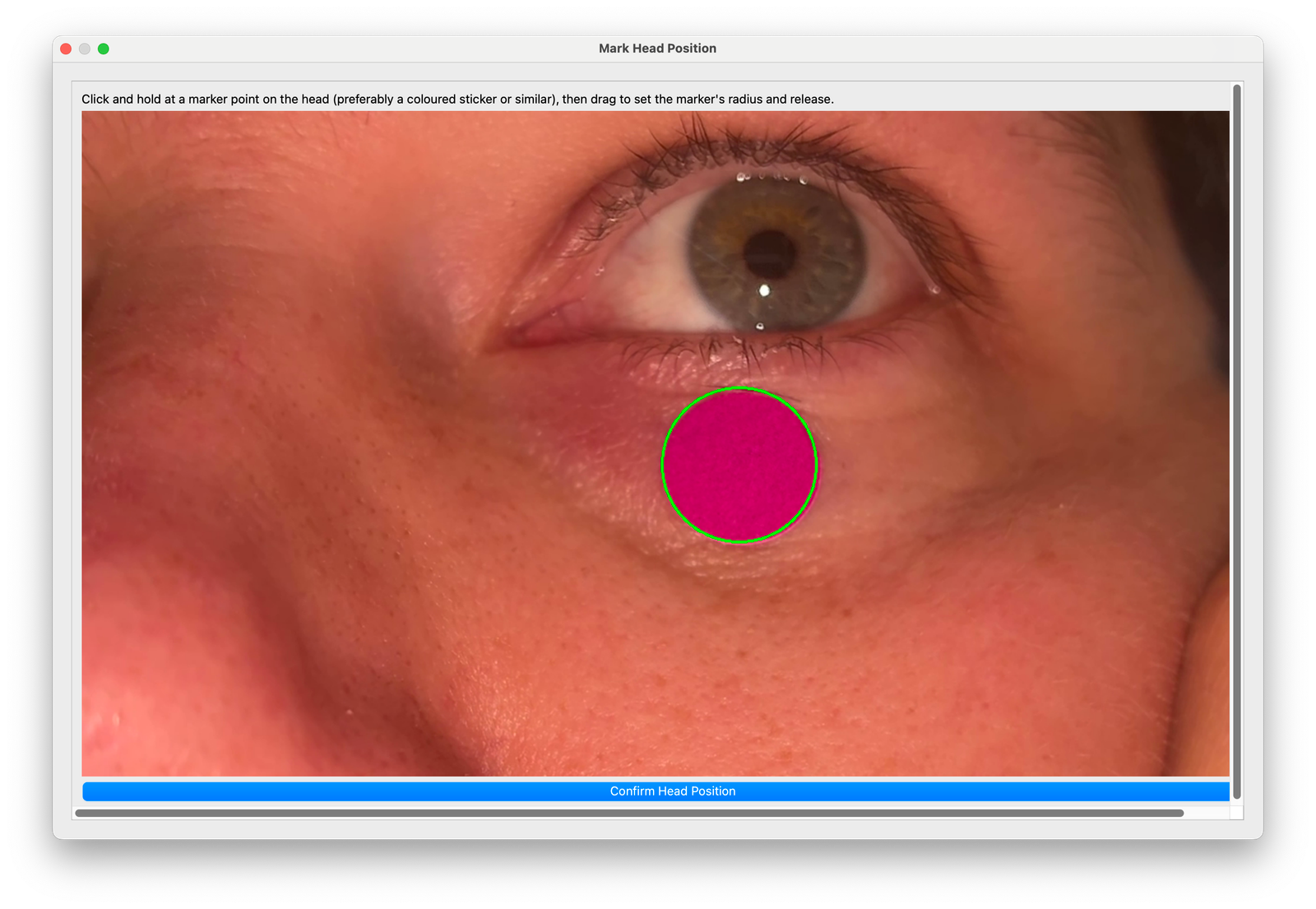
Click on the marker and Eye Precision detects it, or mark it yourself by clicking its centre and dragging to the edge. Round, brightly coloured markers work best
Once you're happy with the marked point, click Confirm Head Position at the bottom of the window (depending on the video size you may need to scroll down)
Pupil threshold
The pupil threshold (how dark an area must be to count as the pupil) is set automatically when you confirm the pupil, so in most cases you don't need to change it. To adjust it, show the slider with View → Show Pupil Threshold Slider
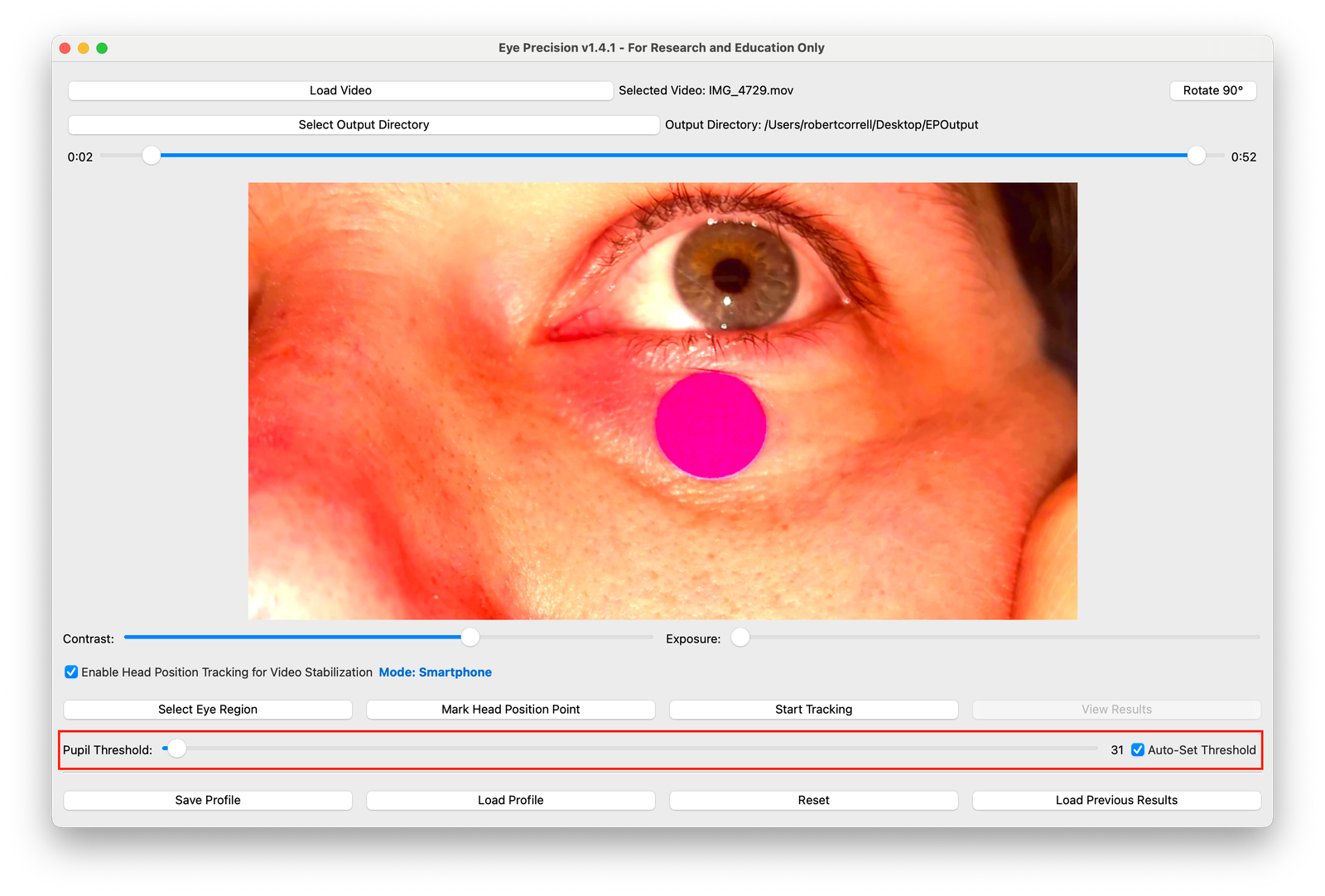
If the pupil isn't tracked accurately:
- If other, lighter areas of the video are being found as possible pupils, move the pupil threshold down
- If at times no pupil is found at all, move the threshold up
Run the analysis
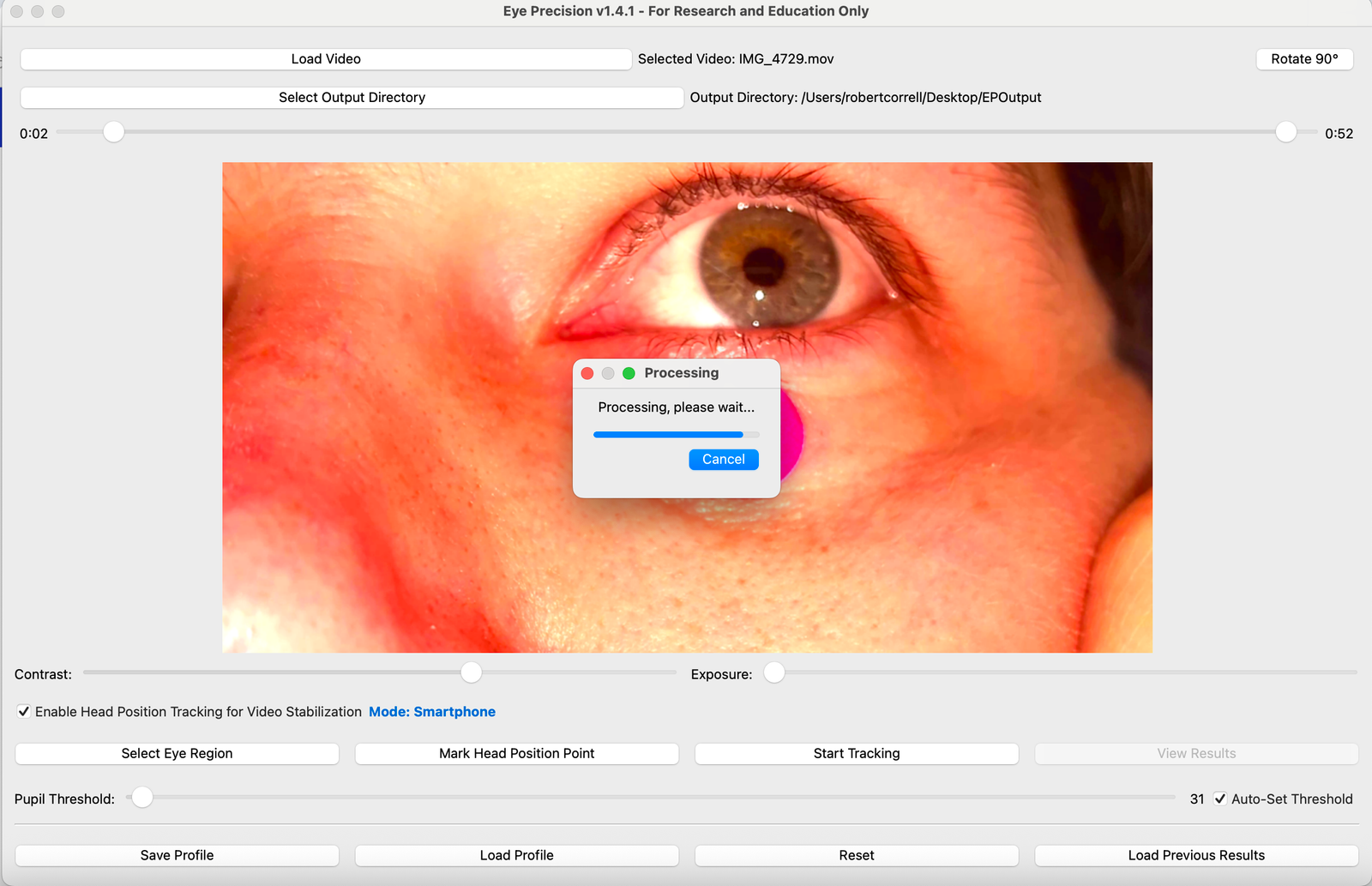
Once all the steps have been completed, click Start Tracking
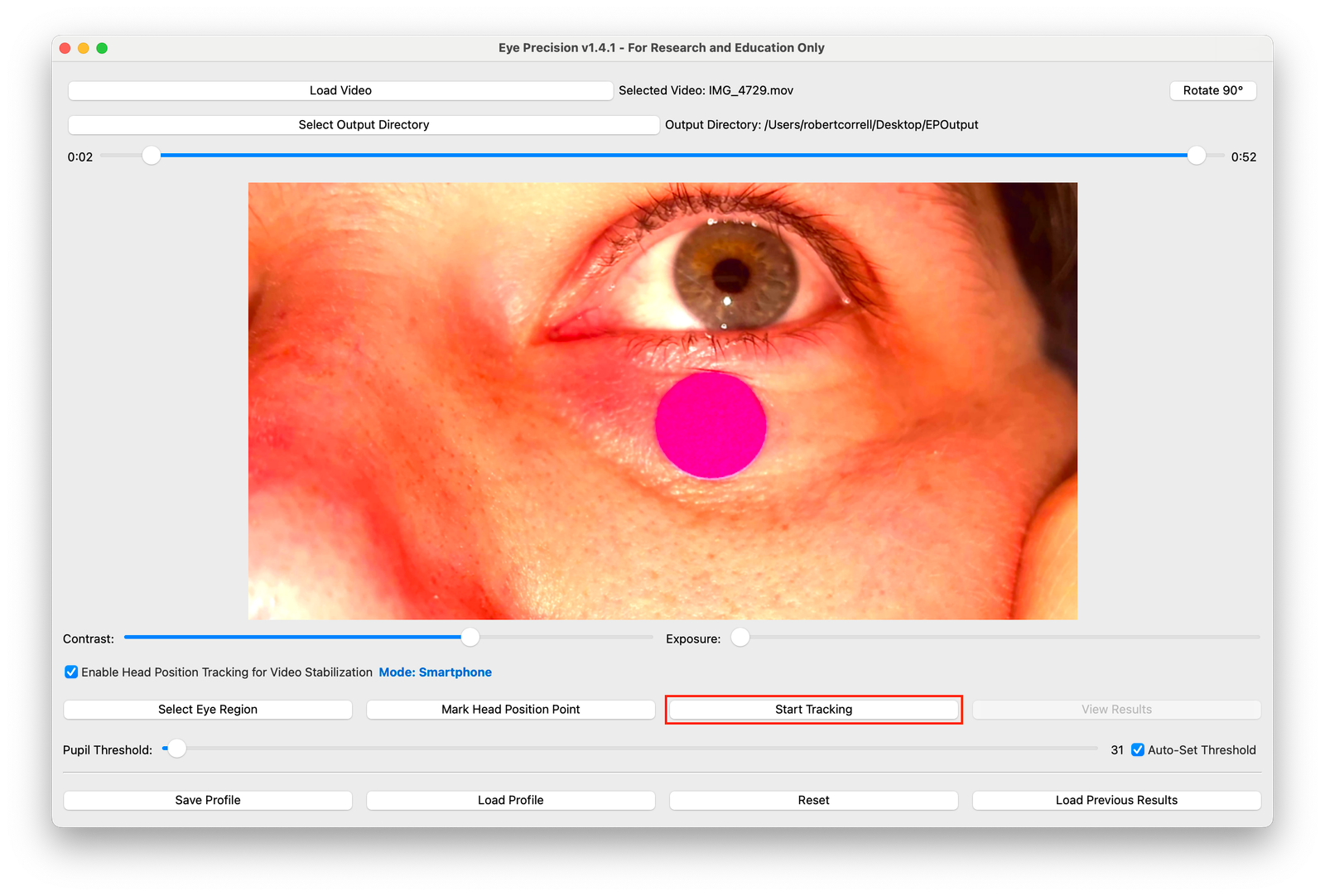
Processing time depends on the length of the video, the frame rate and the speed of your computer. A progress bar shows how far the analysis has got
Viewing results
When processing has finished, click View Results. This opens the results window with the tracking video and the results graphs
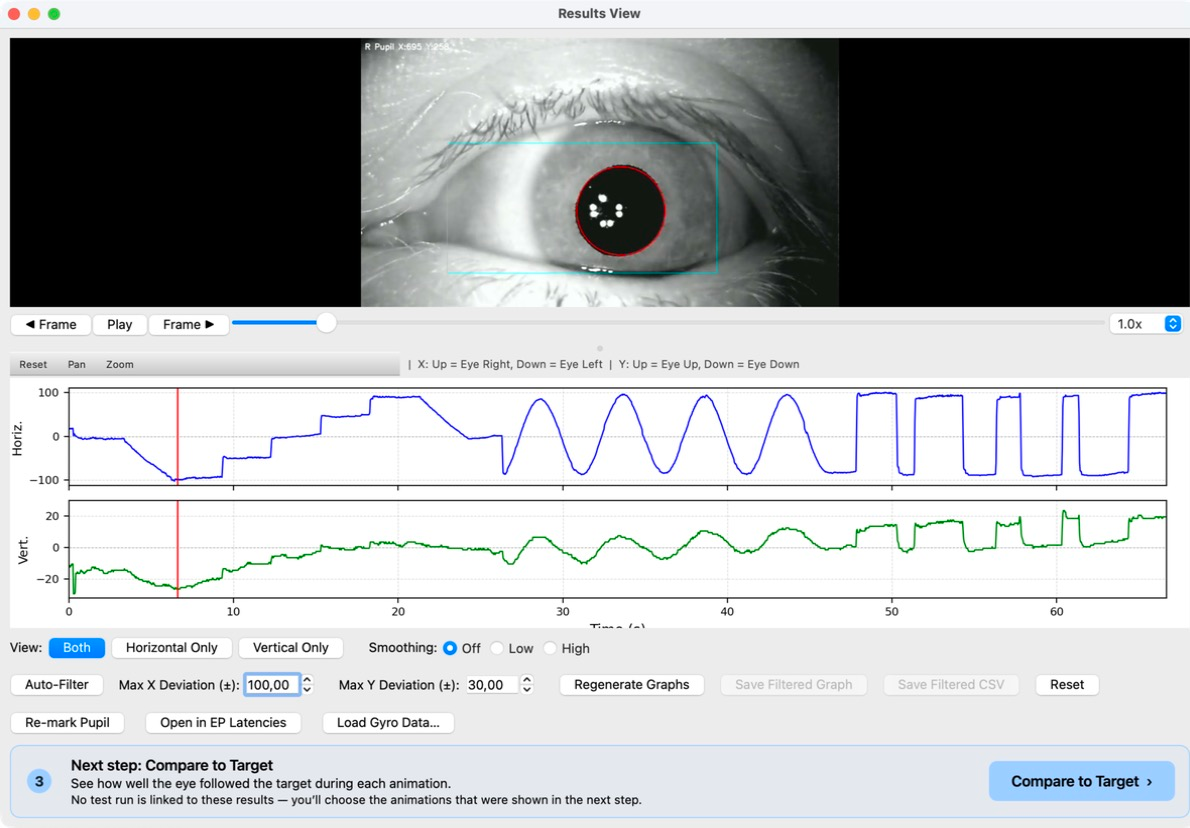
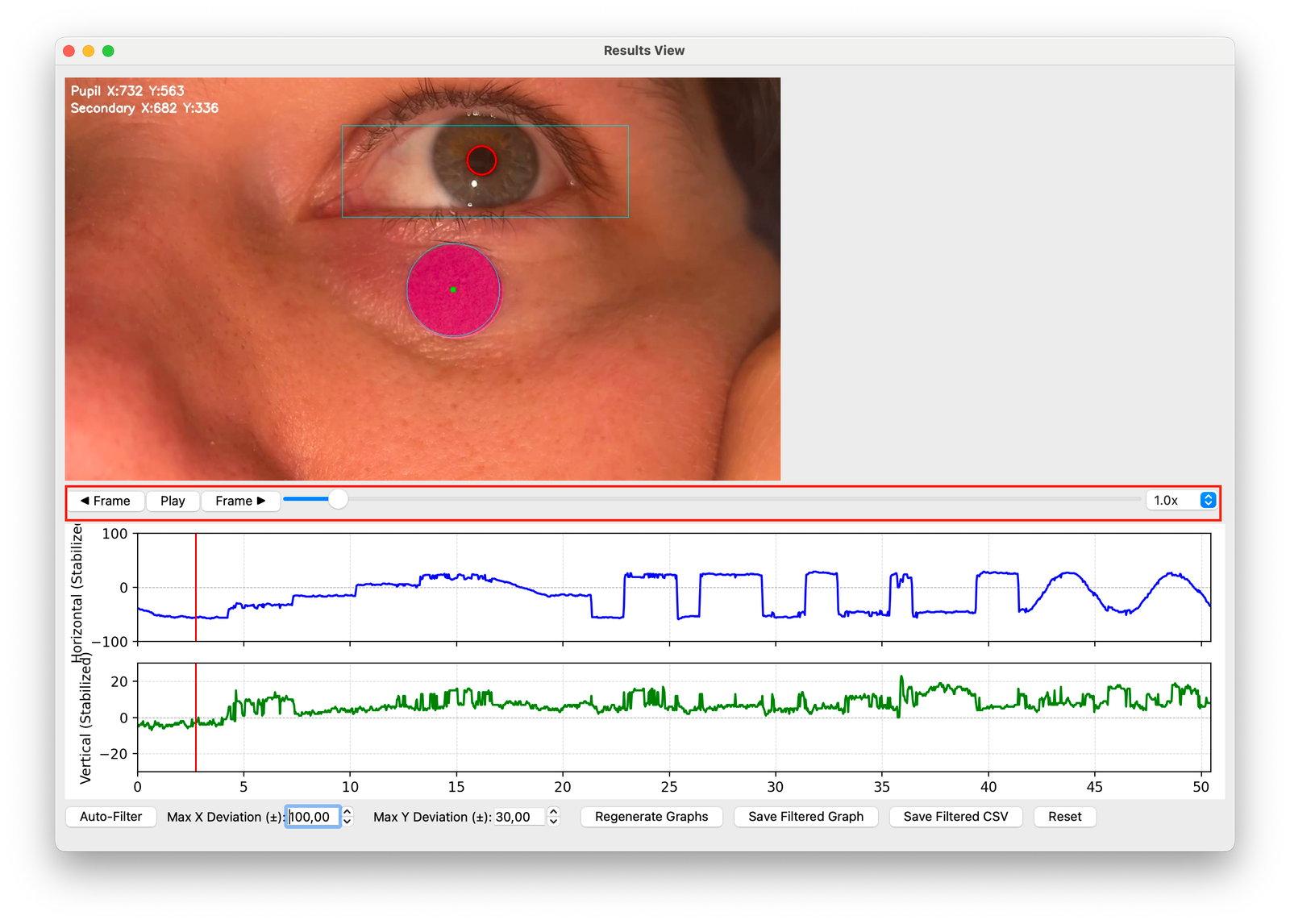
The play controls and slider let you watch the results video and move through it. Check that the red circle follows the pupil
The top graph shows horizontal eye movement over time, the bottom graph vertical eye movement
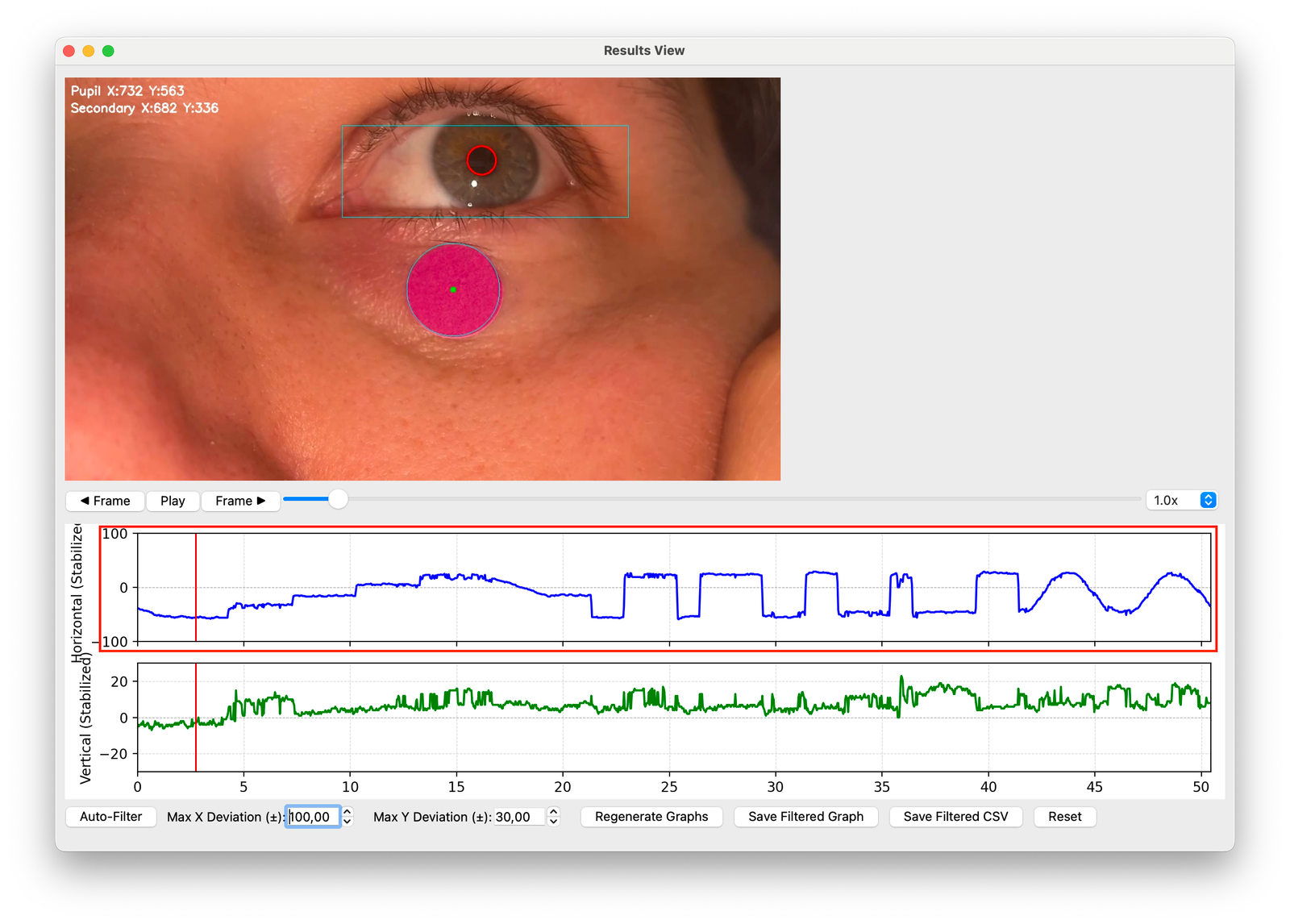
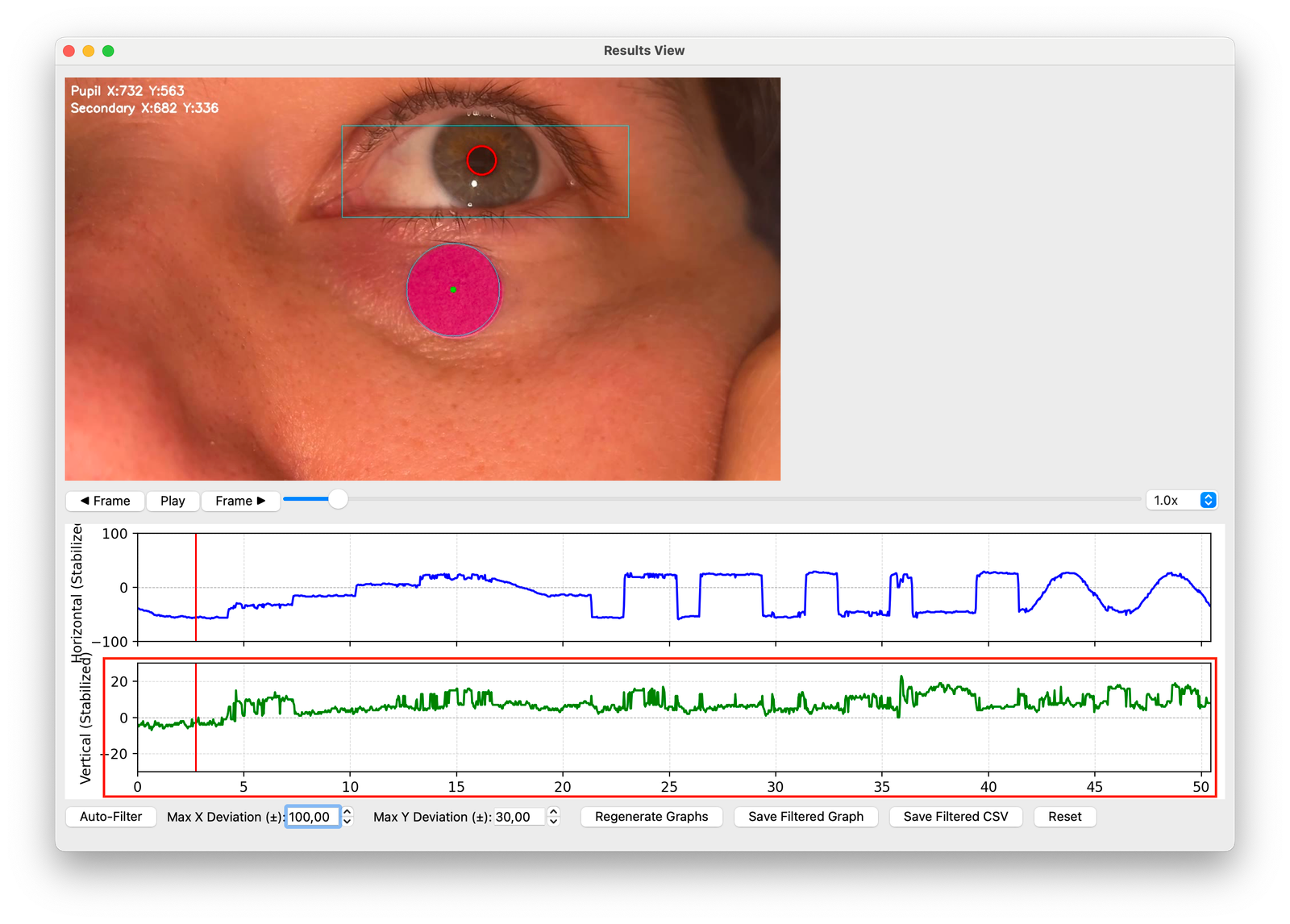
Explanations of the graphs can be found in this module, and help with interpreting them here
Filtering and fixing the results
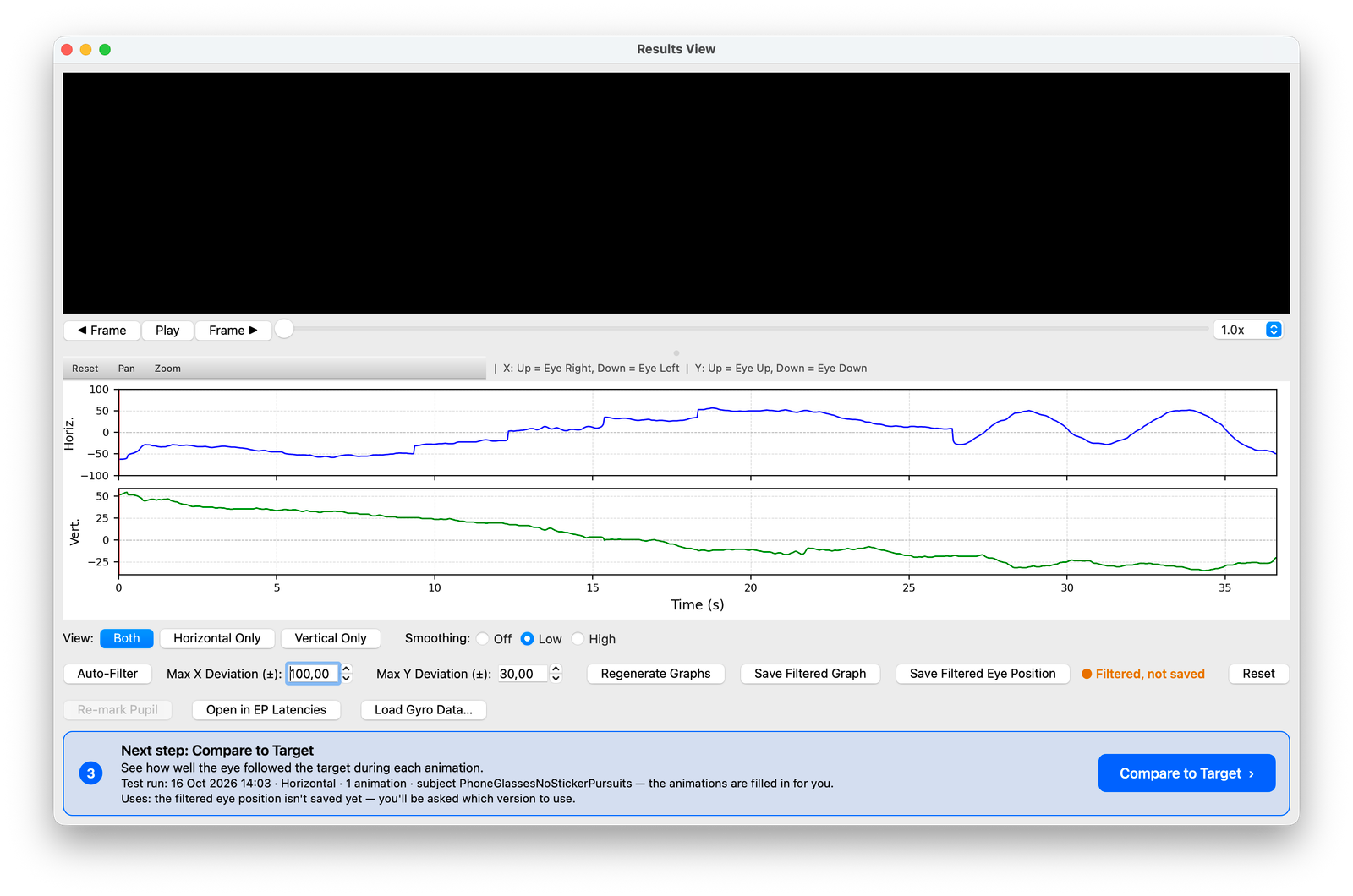
Click Auto-Filter to reduce blink artefacts, then Save Filtered Eye Position to keep the filtered version
The status next to the button shows where you are: Not filtered, ● Filtered, not saved or ✓ Saved. Compare to Target uses exactly the file you saved here
If tracking fails partway through, pause the video at a point after the failure where the pupil is clearly visible and click Re-mark Pupil. Click the centre of the pupil, drag out to the edge and click to confirm. The video is processed again from that point
Accessing results
The results files, including the video, the eye position data (CSV) and the graphs, are saved in your Tracking Results folder, in a folder named after the Subject ID (if you entered one) and the date and time. File → Show Results Folder opens the Tracking Results folder; to change where it is, choose Settings → Run Setup Assistant…
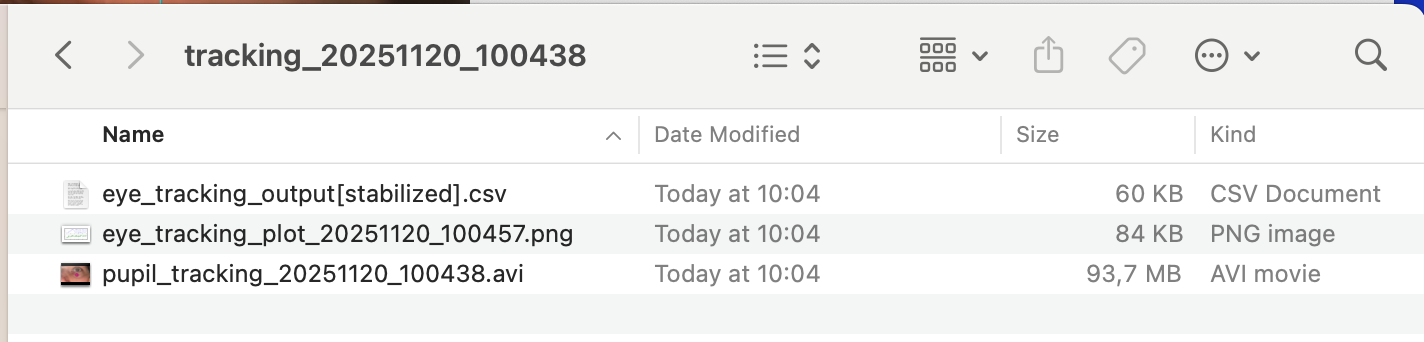
To open saved results again, use Open Previous Tracking Results… or the Recent list on the start screen
On to step 3 – Compare to Target
If the video includes a calibration from Run Test, click Compare to Target in the Next step bar at the bottom of the results window. The bar also says which eye position file will be used (the saved filtered file, or the original results)

If you filtered the results but haven't saved them, Eye Precision asks first: Save and Use Filtered, Use Original or Cancel
The Compare to Target tab opens with this eye position file loaded and, if the video is linked to a test run, the animations filled in. The results window is put aside rather than closed: ‹ Back to Tracking Results on the Compare to Target tab brings it back as you left it