Pairing the EP Recorder App with EP Animations
Video explanation below
Pairing the EP Recorder App with EP Animations
Follow these steps to connect your iPhone running EP Recorder with your computer running EP Animations.
💡 New in version 3.0.9: You can now pair using a QR code as well as the existing pin code. Both methods are covered in step 5 below — use whichever you prefer.
1. Connect to the Same Network
Make sure both devices are connected to the same Wi-Fi network.
- Connect your computer and iPhone to the same Wi-Fi network
- OR
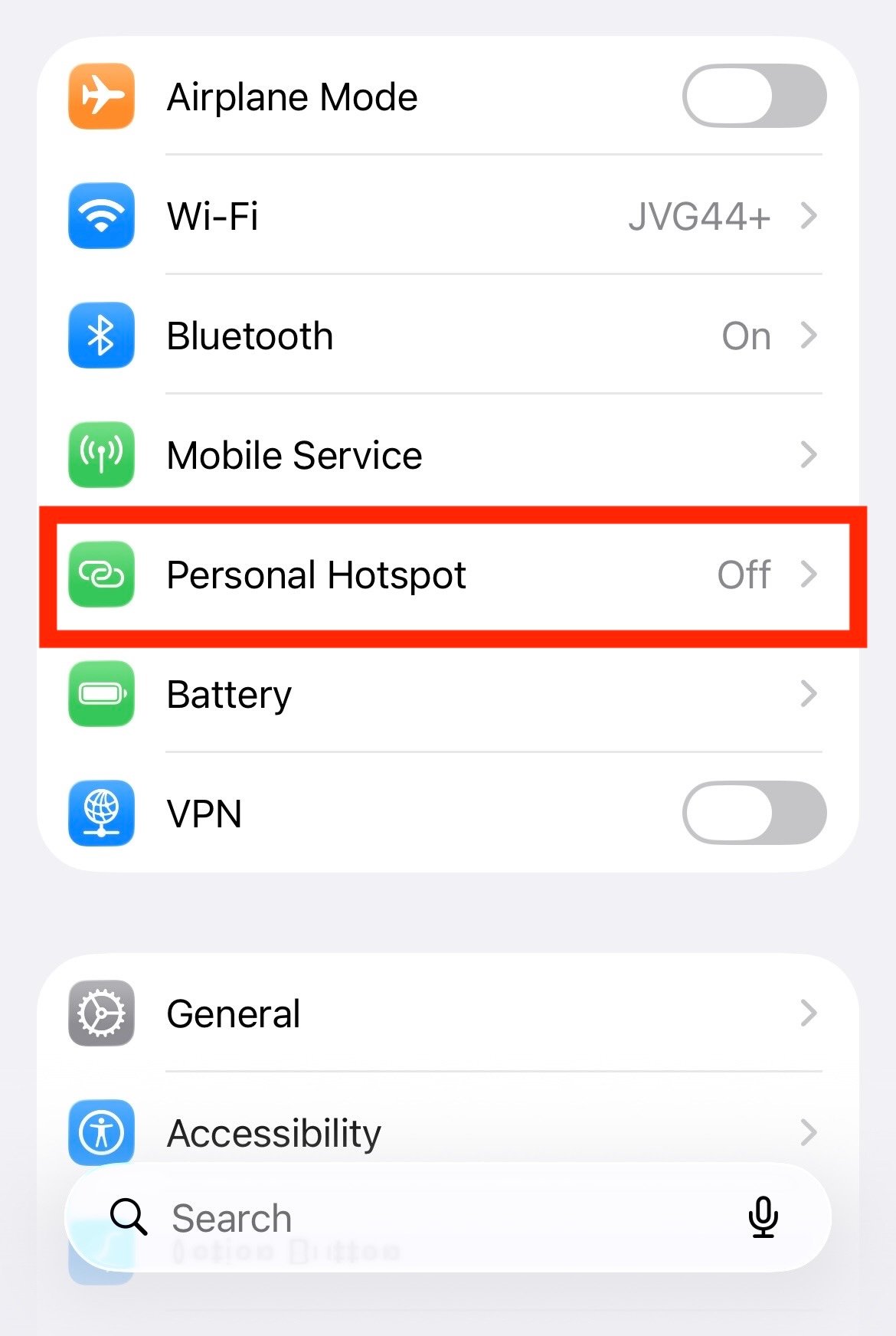
- Turn on Personal Hotspot on your iPhone and connect your computer to it
2. Open Both Applications
- Launch EP Animations on your computer
- Open the EP Recorder app on your iPhone
3. Select EP Recorder in EP Animations
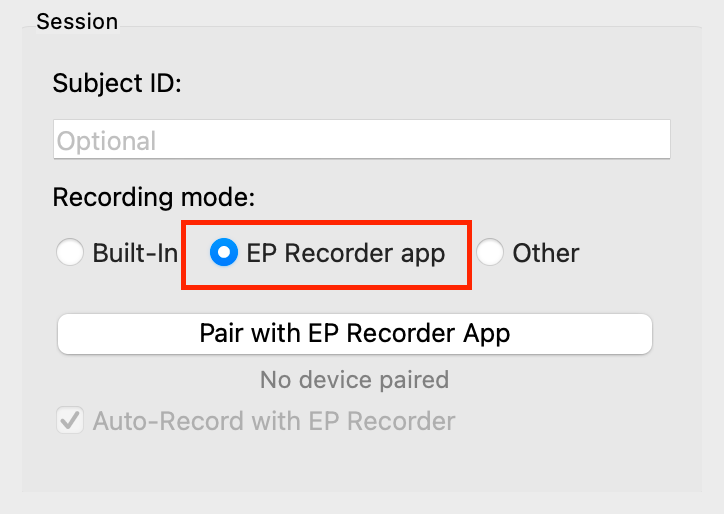
- Go to the Session section (top left)
- Select “EP Recorder app”
4. Start the Pairing Process on Your Computer
- Click “Pair with EP Recorder App”
- Or select it from the Options menu in the toolbar
- Select your iPhone from the list
- Click “Pair Device”
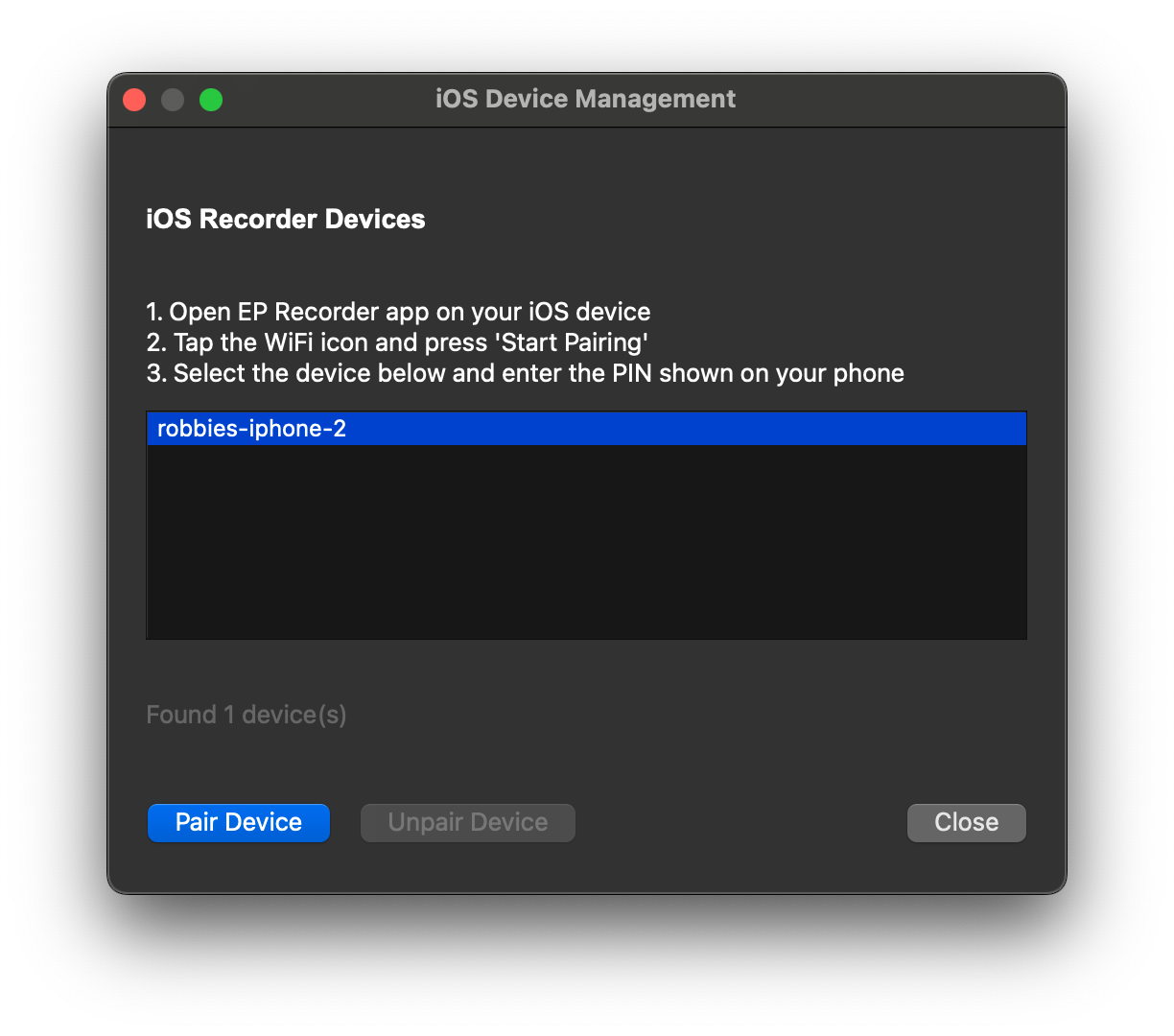
💡 If your iPhone was previously paired, click “Unpair Device” first.
5. Pair Your iPhone — QR Code or Pin Code
From version 3.0.9 you can pair using a QR code (the quickest option) or the existing 6-digit pin code. Choose one of the two options below.
Option A — Pair via QR Code (version 3.0.9 and later)
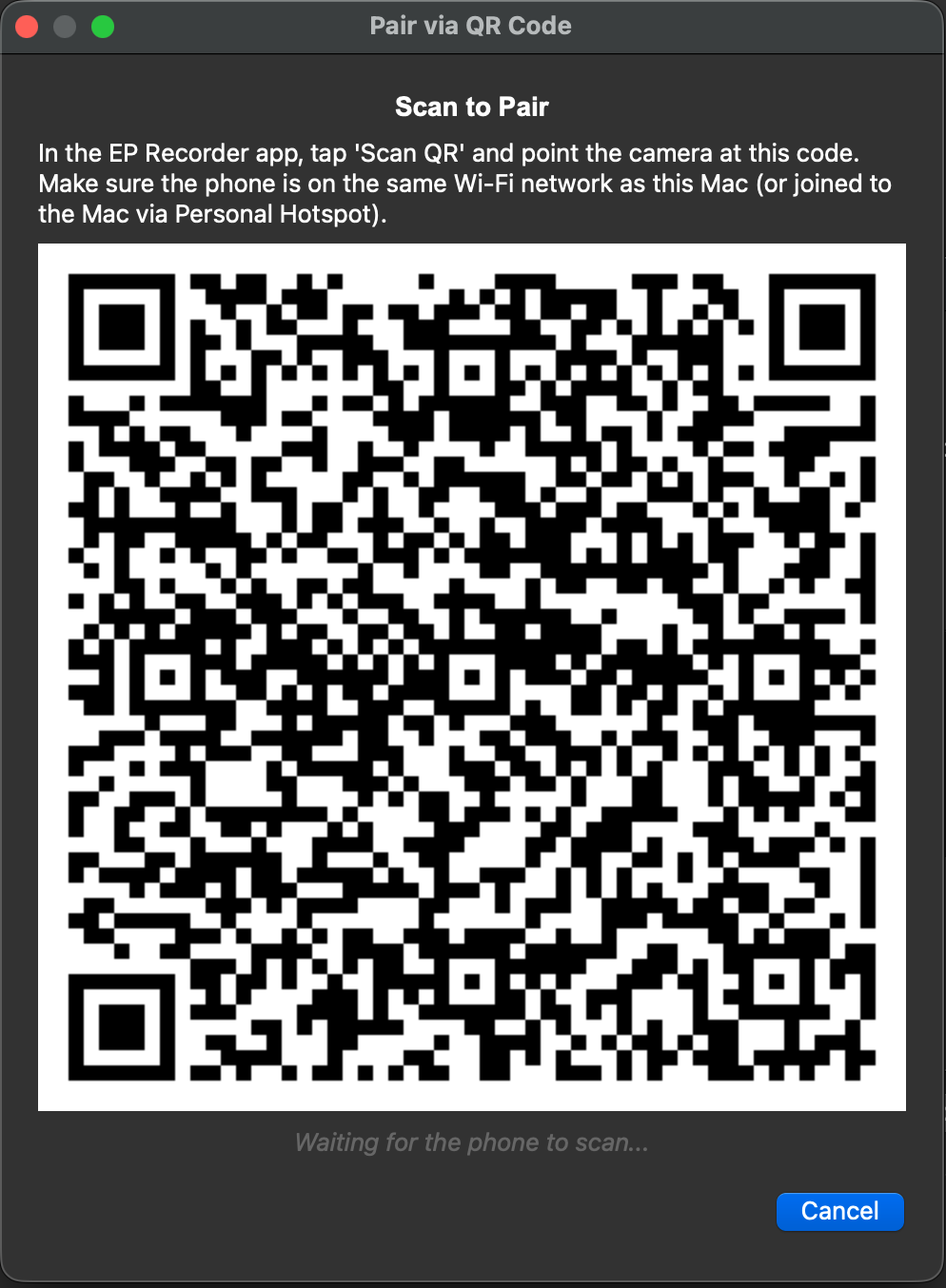
- In the pairing dialog you opened in step 4, click “Pair via QR Code” (you don’t need to select your iPhone from the list first, even though it appears there)
- A QR code will appear on your computer screen
- In the EP Recorder app, open the camera view and scan the QR code
Pairing completes automatically once the code is scanned — you can skip step 6 and go straight to step 7 (Confirm Connection).
Option B — Pair via Pin Code
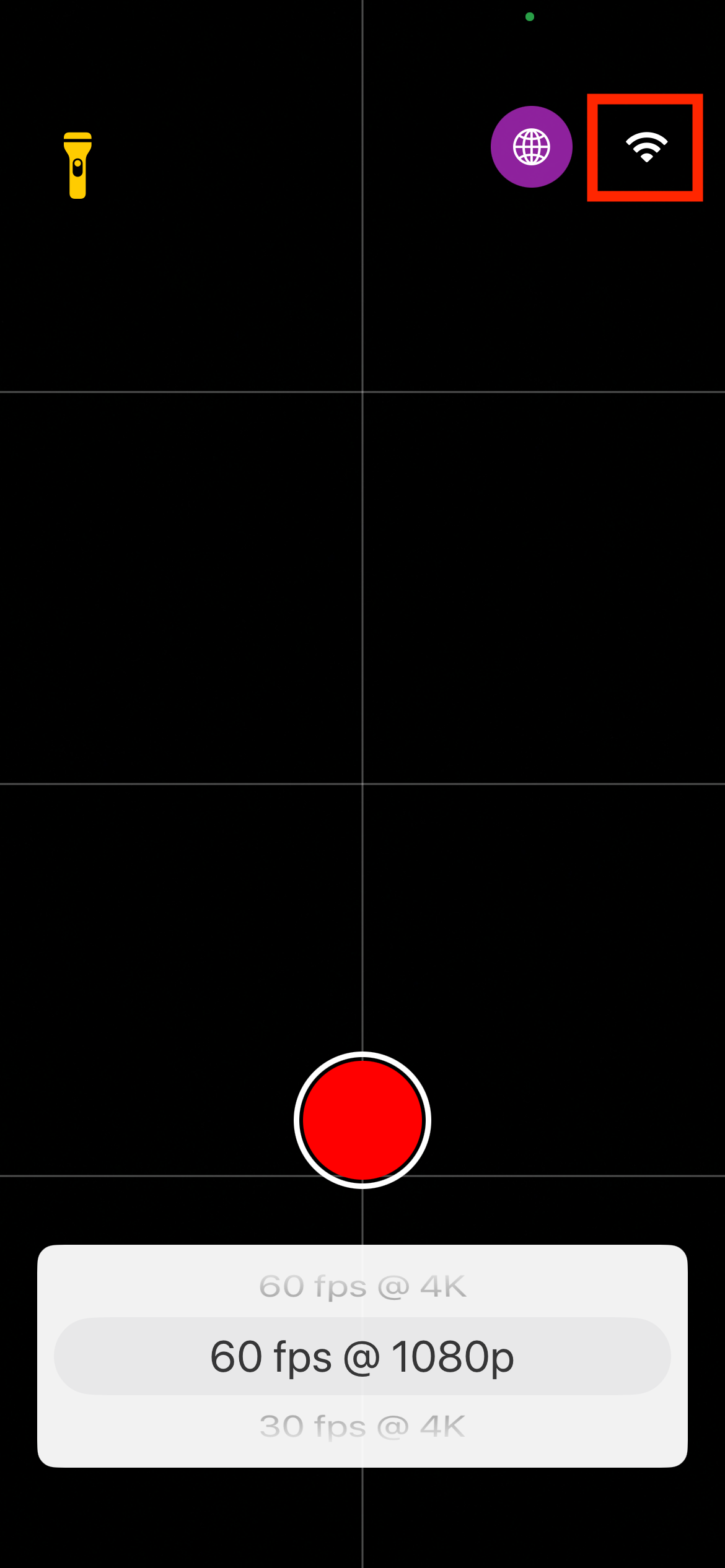
- On your iPhone, tap the Wi-Fi icon (top right), then tap “Start Pairing”
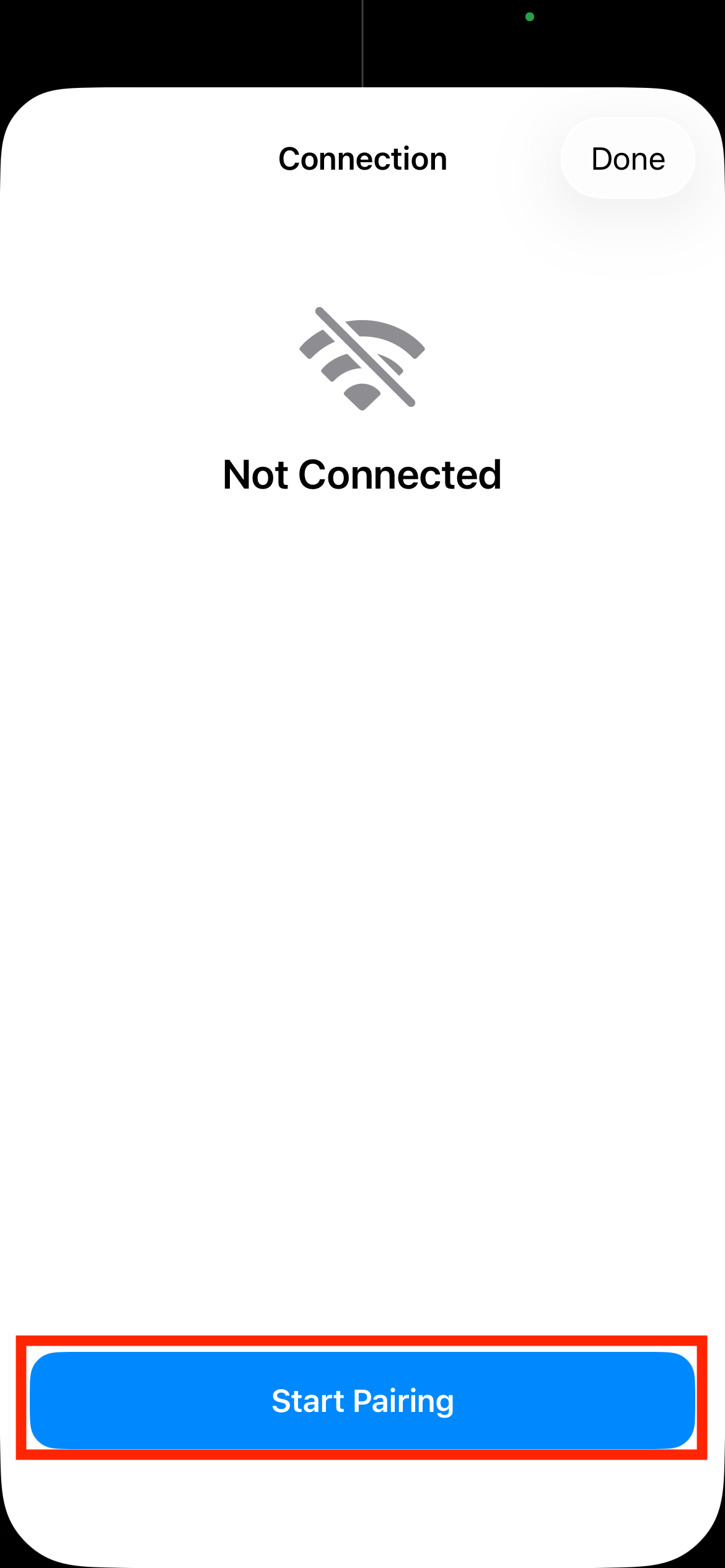
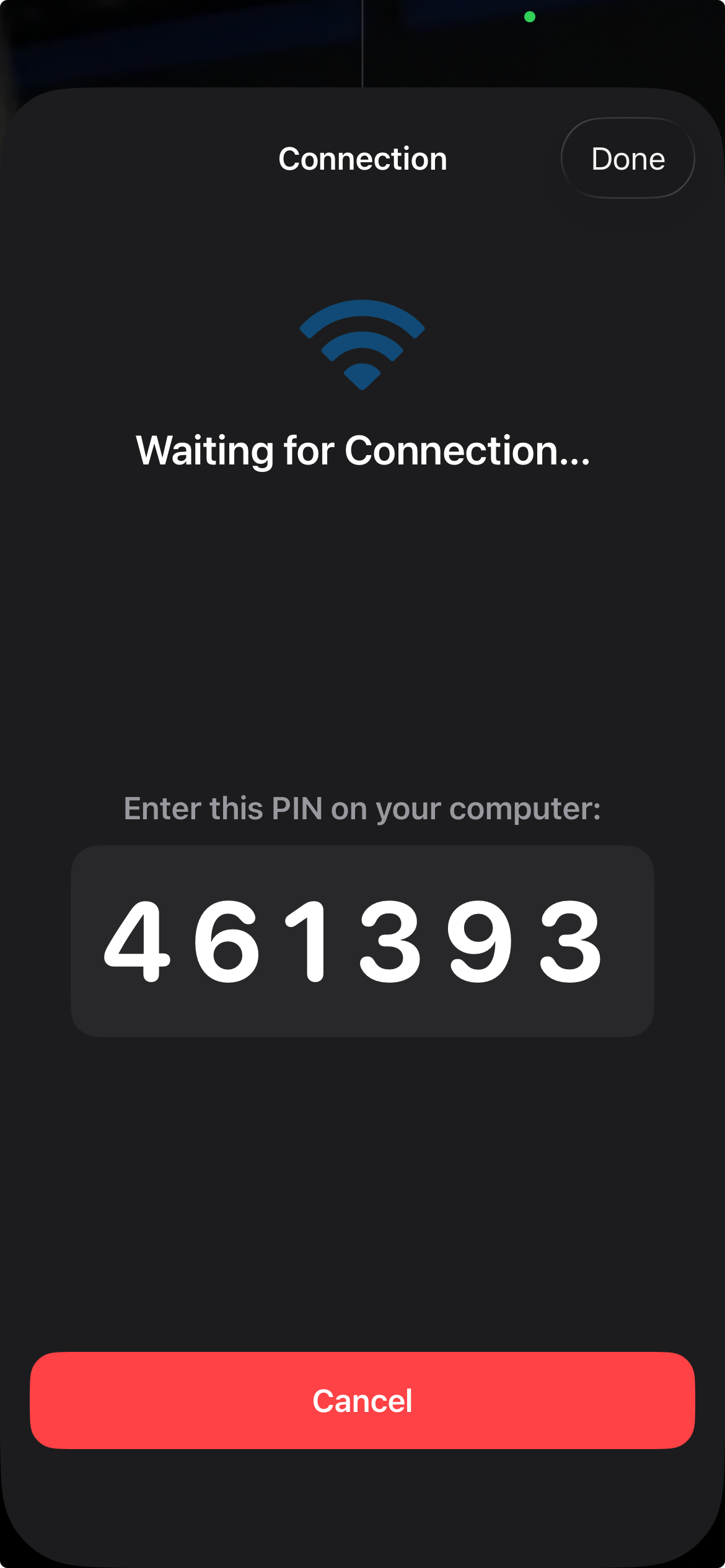
- A 6-digit code will appear on your iPhone
- Enter this code in EP Animations
6. Complete the Pairing (pin code method only)
- (Optional) Check “Keep Device Paired”
- Click “Pair”
7. Confirm Connection
Both your iPhone and computer will show a confirmation message when pairing is successful.
Tips
- Keep both devices on the same network during pairing
- If pairing fails, restart both apps and try again