Step 3 – Compare to Target
Eye Precision works in three steps: 1 Run Test (show the animations and record the eyes), 2 Track Eyes (measure the eye position in the video) and 3 Compare to Target (compare the eye position with where the target was).
Compare to Target produces graphs of the eye position against the target position for each animation. It needs a recording that starts with a calibration sequence (Run Calibration in Run Test), tracked in Track Eyes. It also needs an EP Animations license; if one is already activated on this computer it is found automatically, otherwise enter your key on the tab or buy a license.
Open Compare to Target
The easiest way: in the Track Eyes results window, click Compare to Target in the Next step bar at the bottom. The Compare to Target tab opens with the eye position file already loaded

You can also click Compare to Target on the start screen or the tab, drop a results CSV file onto the window, or pick a recent comparison from the Recent list on the start screen
The tab is set out in three numbered steps, 1 Eye position file, 2 Animation direction and 3 Animations shown, with the Compare with Target button underneath
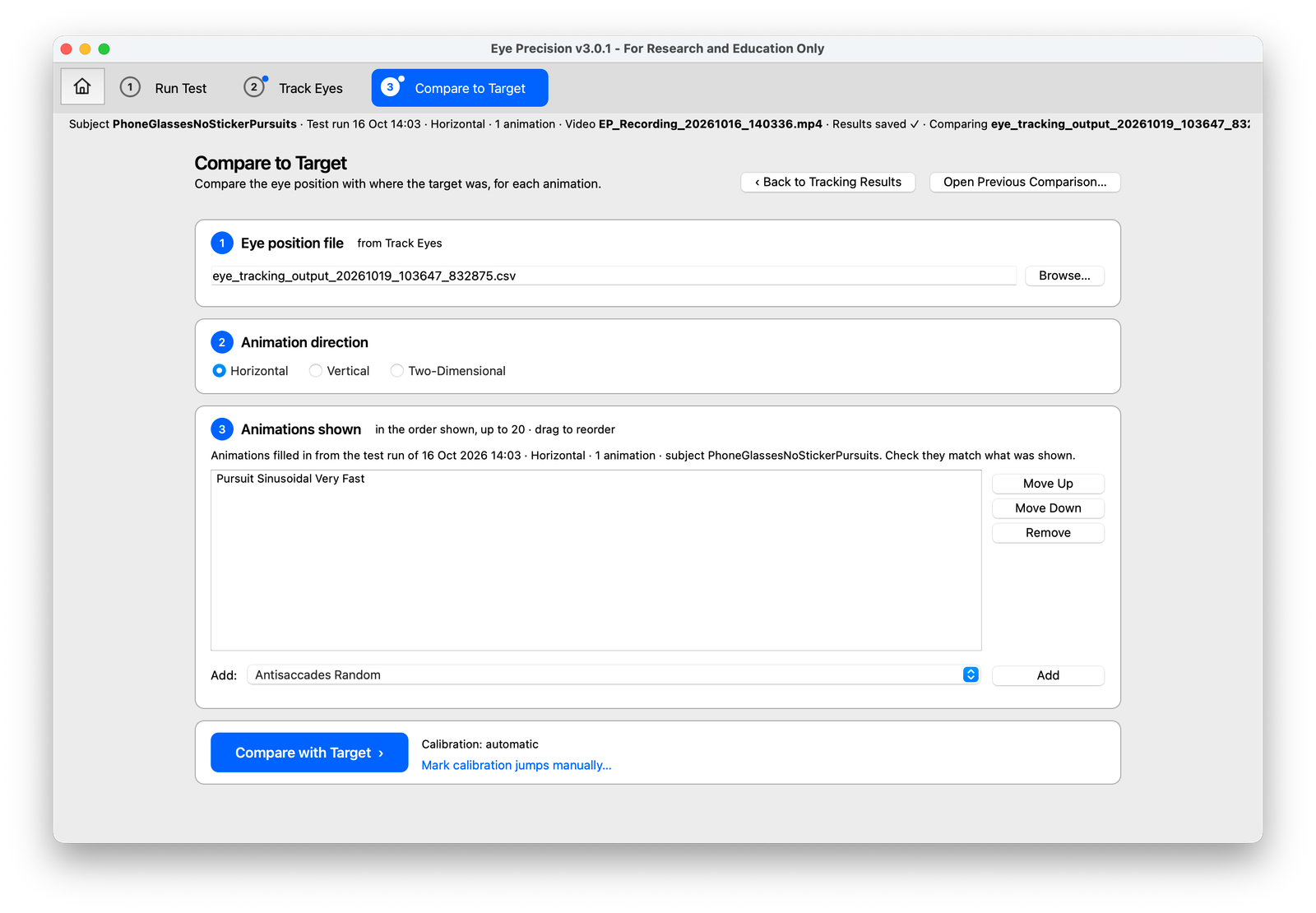
If you came from the results window, ‹ Back to Tracking Results at the top of the tab takes you back to them
1 – Eye position file
If you came from the results window, the eye position file is already filled in: the file you saved with Save Filtered Eye Position, or otherwise the original results. When you open older results again, the newest saved filtered file is used, and a note says so
To choose a file yourself, click Browse…. Results are in your Tracking Results folder, in a folder named after the Subject ID and the date and time. Choose eye_tracking_output….csv, or a filtered_eye_tracking_results….csv file if you saved a filtered version
2 – Animation direction
Make sure the correct direction (Horizontal, Vertical or Two-Dimensional) is selected
3 – Animations shown
If the video was linked to a test run in Track Eyes, the animations that were shown and the animation direction are filled in for you. A note above the list says which test run they came from
Check that the list matches what was shown, in the same order. Drag an animation to change the order, or use Move Up, Move Down and Remove. To add one, choose it from the Add: dropdown under the list and click Add
If no test run was saved with the file, choose the animations yourself, in the order they were shown
Compare with Target (automatic calibration)
When the animations and the file are correct, click Compare with Target
Eye Precision finds the calibration points in the results automatically and opens the interactive graph inside the app: the dotted line is the target position, the solid line is the eye position. See The interactive graph below
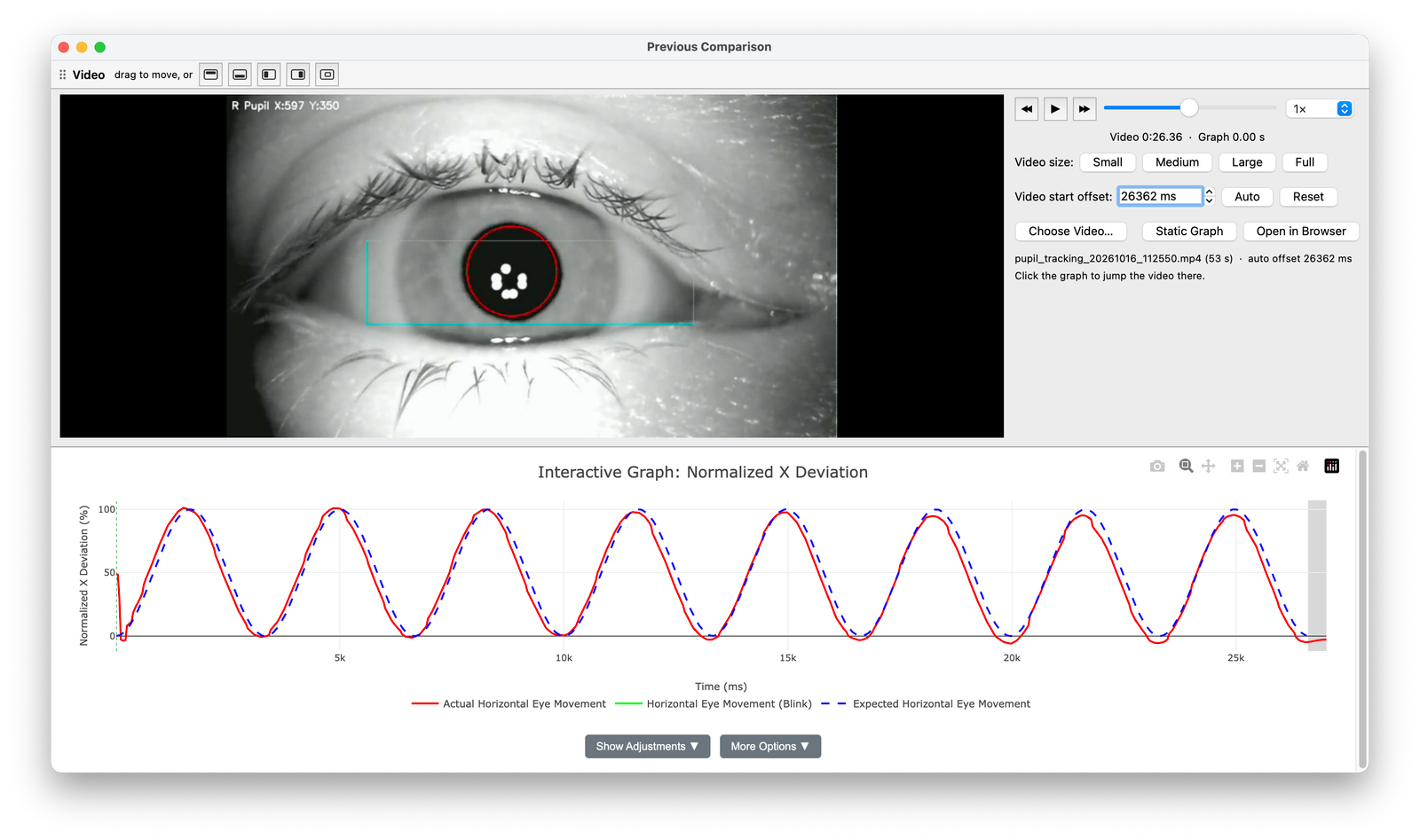
Next to the button, the calibration status shows whether the calibration was found automatically or marked by hand
To check the calibration itself, click Show Calibration Graph on the Compare to Target tab. It appears once the calibration has been found, and shows the calibration part of the recording
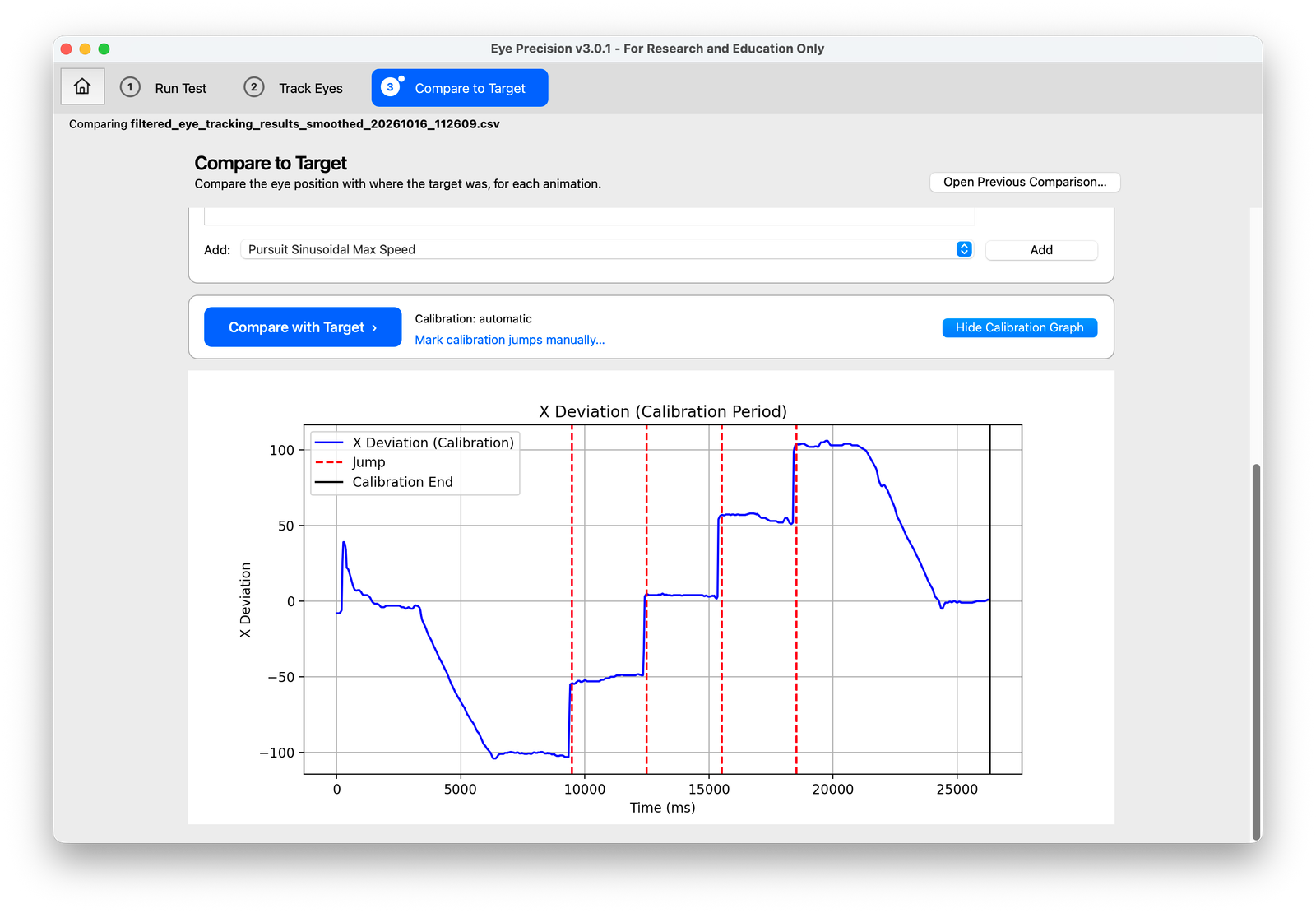
If there are artefacts in the calibration phase, or the timing is off, you may need to mark the calibration by hand. See the next section
Manual calibration
If the automatic calibration found the saccades of the calibration phase and the graph lines up reasonably with the target line, you can skip this step
Go back to the Compare to Target tab and click Mark calibration jumps manually…, next to the Compare with Target button
A new window shows a graph of the first 40 seconds of the results. A calibration phase should contain four saccades, visible as four vertical lines on the graph
Click on each of the four saccade lines in turn to mark their positions. After marking the fourth saccade, click Confirm and confirm the pop-up; you'll return to the Compare to Target screen
If you misclick and don't hit a saccade accurately, click Reset and mark the four saccades again
Once the saccades have been marked, click Compare with Target again to see the graphs with the manual calibration applied
The interactive graph
Comparisons open in the interactive graph inside Eye Precision, with the tracking video from the results folder above it. While the video plays, a marker on the graph shows the current time; click the graph to jump the video to that point. The space bar plays and pauses
The video is in a panel you can move: drag its title bar to put it above, below or beside the graph, or out into its own window, or use the position buttons in the title bar. Eye Precision remembers where you put it
Under the video:
- Video size – Small, Medium, Large or Full
- Video start offset – lines the video up with the graph if needed. Auto sets it as when the window opened, Reset sets it to 0
- Choose Video… – pick a different video, for example if none was found in the results folder
- Static Graph – the comparison as a picture (Detail / Overview), as in earlier versions
- Open in Browser – opens the same graph in your web browser
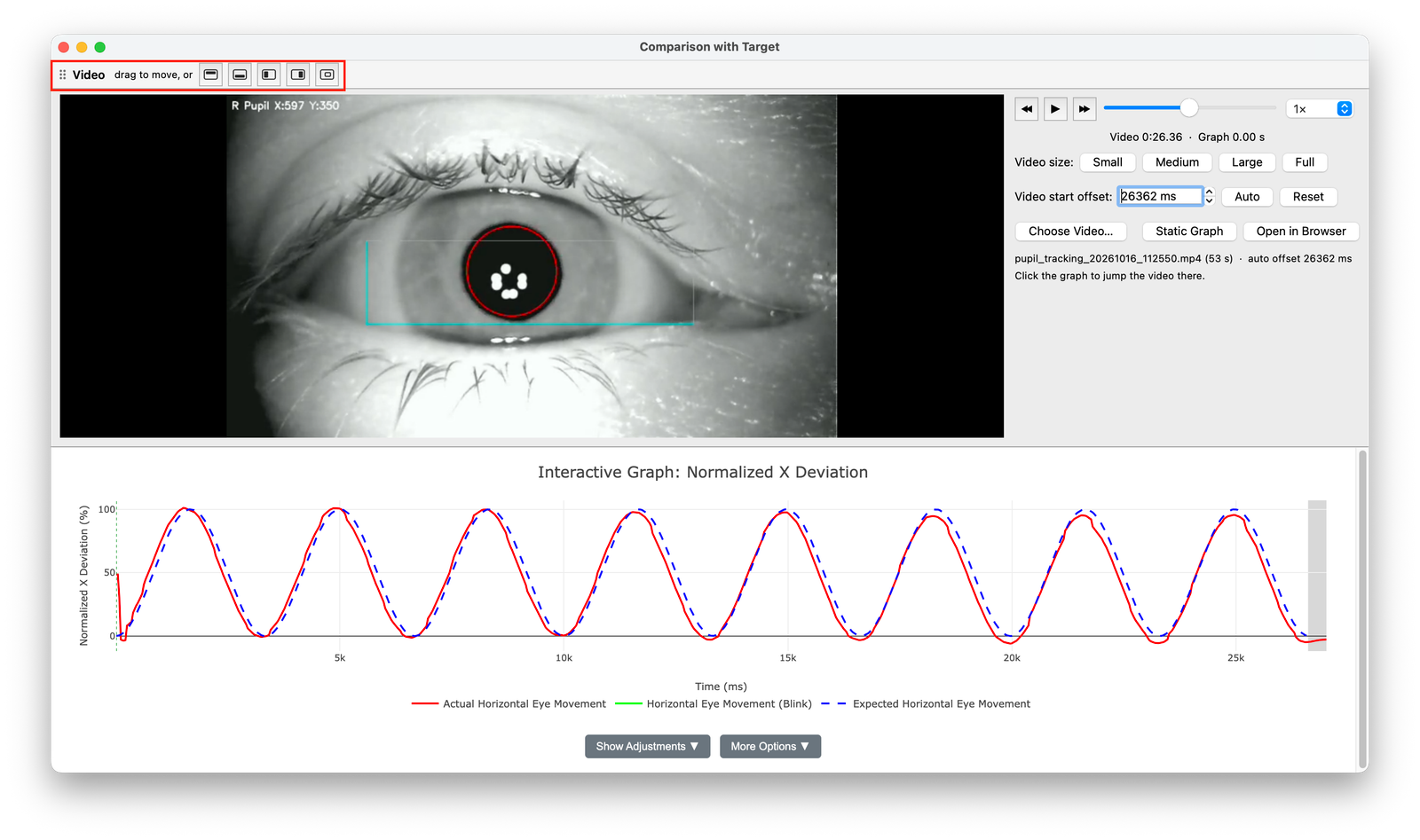
If the interactive graph can't be shown on your computer, Eye Precision shows the static graph instead
For more on reading the interactive graphs, go to this module
Open a previous comparison
To look at a comparison again later, click Open Previous Comparison… on the Compare to Target tab, or use the Recent list on the start screen
Understanding the results
For help interpreting the graphs, see Analysing Results